

Overview
To use the MCP Gateway with your AI client (Claude Desktop, Claude Code, or any MCP-compatible tool), you need two things:- A personal API key to authenticate as yourself
- Your client pointed at
https://mcp-gateway.aptible.com
Getting Started
1
Create an API Key
In the Aptible dashboard, navigate to MCP > API Keys and create a new key. Copy the token. You won’t be able to see it again after closing the dialog.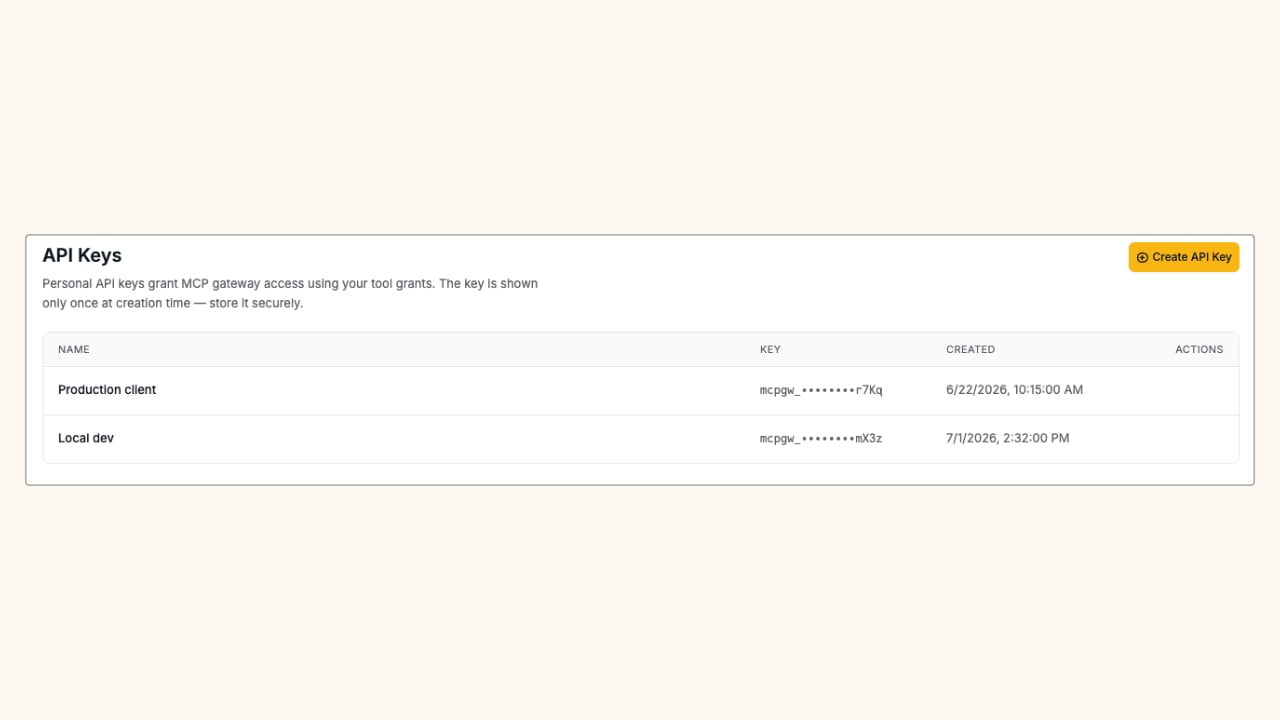
2
Add the Gateway as an MCP Server
Point your MCP client at
https://mcp-gateway.aptible.com and pass your API key as a bearer token in the Authorization header.- Claude Desktop
- Claude Code
- Other clients
Open your Claude Desktop config file (Save the file and restart Claude Desktop.
~/Library/Application Support/Claude/claude_desktop_config.json on macOS) and add an entry under mcpServers:Using the MCP Gateway
Once connected, your AI client will discover the tools available to you through the gateway. From that point, using the gateway is transparent. You call tools the same way you would with any MCP server, and the gateway handles routing, access checking, and logging in the background. To see the full list of tools you have access to, navigate to MCP > My Tools in the Aptible dashboard.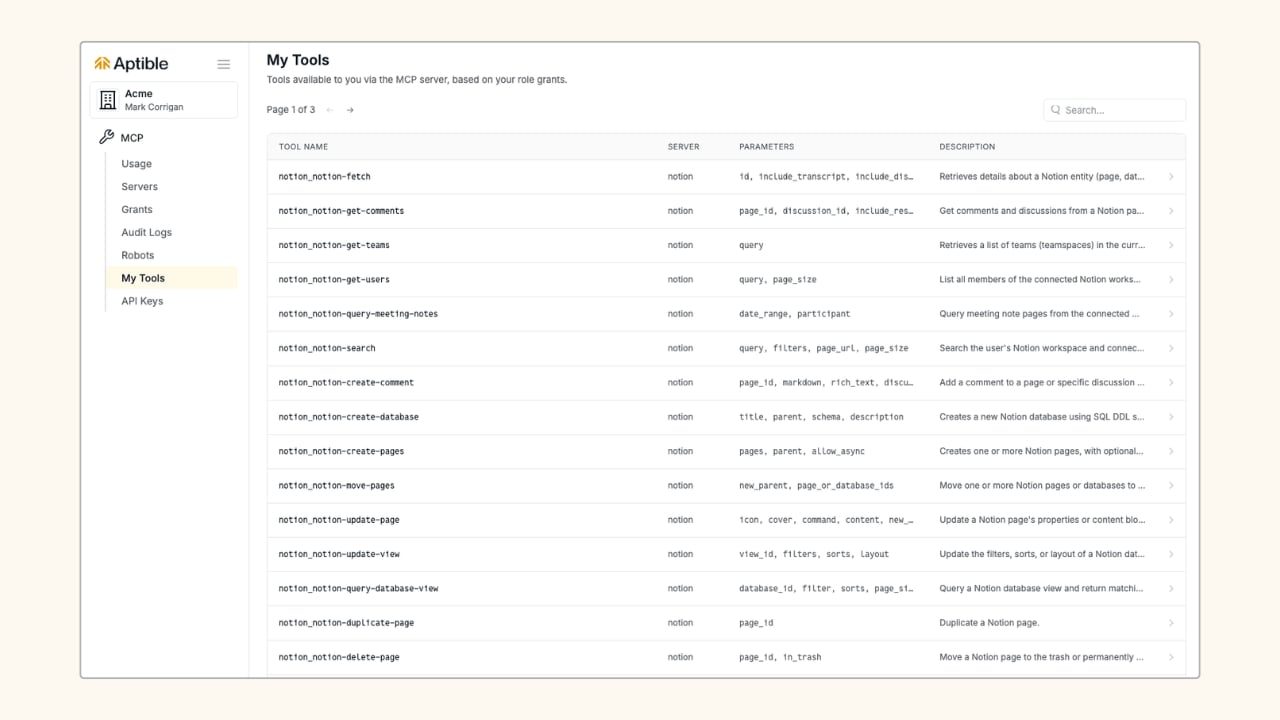
Related
User API Keys
Manage your personal API keys.
Audit Logging
See your tool call history.