Overview
The LLM Gateway works as a standalone product or alongside your existing Aptible infrastructure. No apps or databases required. Sign up and start sending requests right away. See the pricing page for plan and usage details.
- Access 100+ models across Anthropic, OpenAI, and open-weight providers through a single API
- Integrate with any OpenAI- or Anthropic-compatible SDK, and every major agent harness and coding assistant
- Govern which models your team can use with organization-wide model access policies
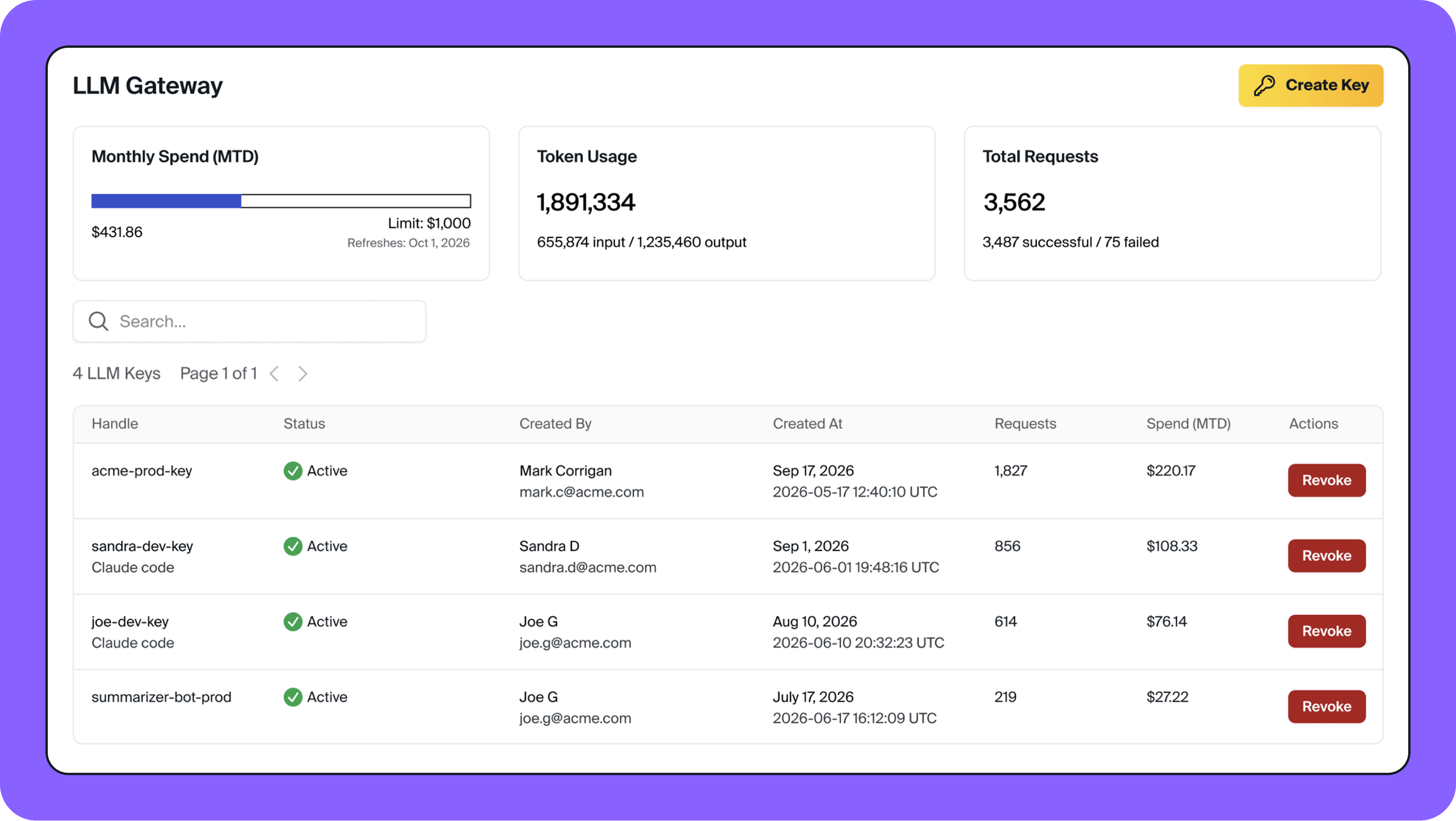
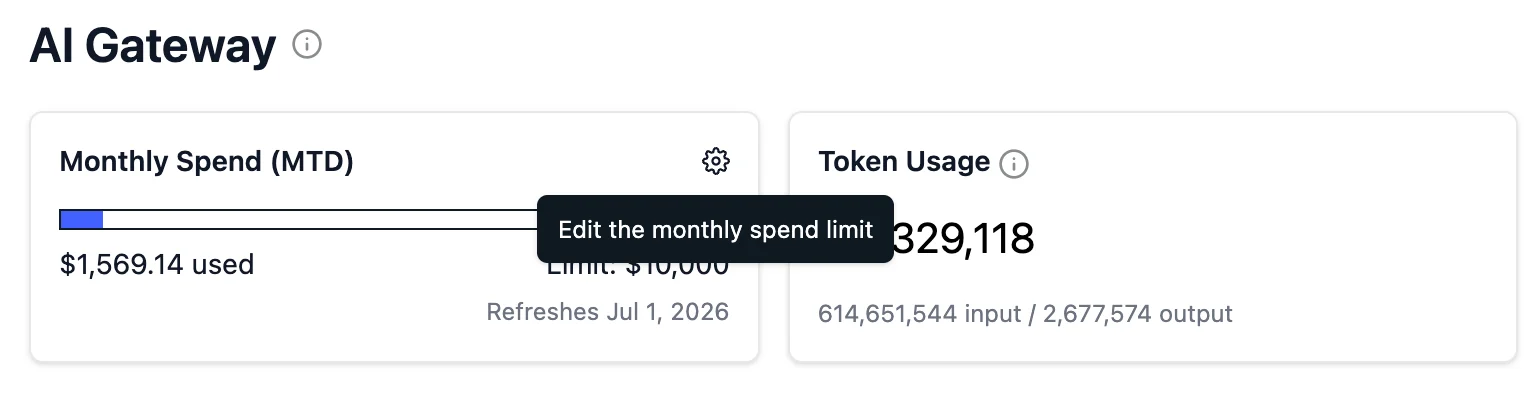
- Control and monitor spend with an organization-wide spend limit, plus per-key cost visibility
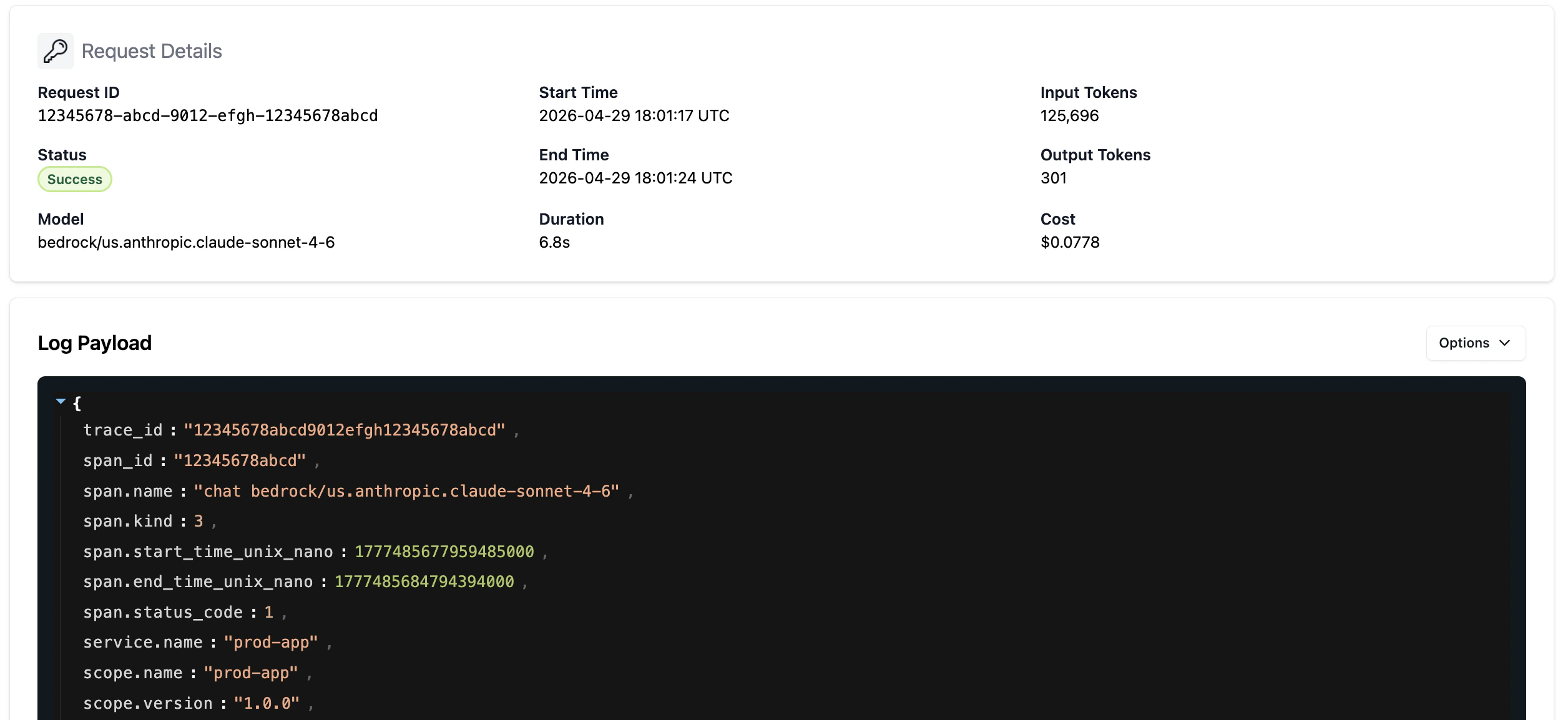
- Review request history and inspect full request and response logs to troubleshoot and refine prompts
- Send PHI safely under Aptible’s HIPAA BAA, with automatic audit logging and encryption
Get Started
Claude Code
Route Claude Code through the LLM Gateway.
OpenAI-compatible SDKs
Point any OpenAI-compatible SDK at the LLM Gateway.
Anthropic-compatible SDKs
Point any Anthropic-compatible SDK at the LLM Gateway.
Supported Models
The LLM Gateway supports 100+ models across Claude, GPT, and open-weight model families. See Supported Models for full details.Claude
Anthropic’s Haiku, Sonnet, and Opus models
GPT & o-series
OpenAI’s GPT-4o, GPT-4.1, GPT-5, o3, o4, and more
Open-weight models
Amazon Nova, Meta Llama, Qwen, DeepSeek, and more
Integrations & Compatibility
Call the LLM Gateway through OpenAI- or Anthropic-compatible endpoints, or point a supported agent harness or coding assistant at your own dedicated base URL and never edit it again. Learn more about Supported APIs →Features
Security & Compliance
The LLM Gateway is designed so compliance is built in at the infrastructure layer, not something your team has to configure or maintain. You route requests through the gateway, the controls apply automatically.
Learn more about Security & Compliance →
Model Access Policies
Control which models your team can use with a single, organization-wide model access policy. The policy applies to every LLM key in your organization, giving you centralized control over model usage across your applications and developers. Learn more about Model Access Policies →Cost Visibility & Control
Audit Logging