> ## Documentation Index
> Fetch the complete documentation index at: https://www.aptible.com/docs/llms.txt
> Use this file to discover all available pages before exploring further.
# Servers & Tools
> Register upstream MCP servers with the gateway so agents can call their tools.
## Overview
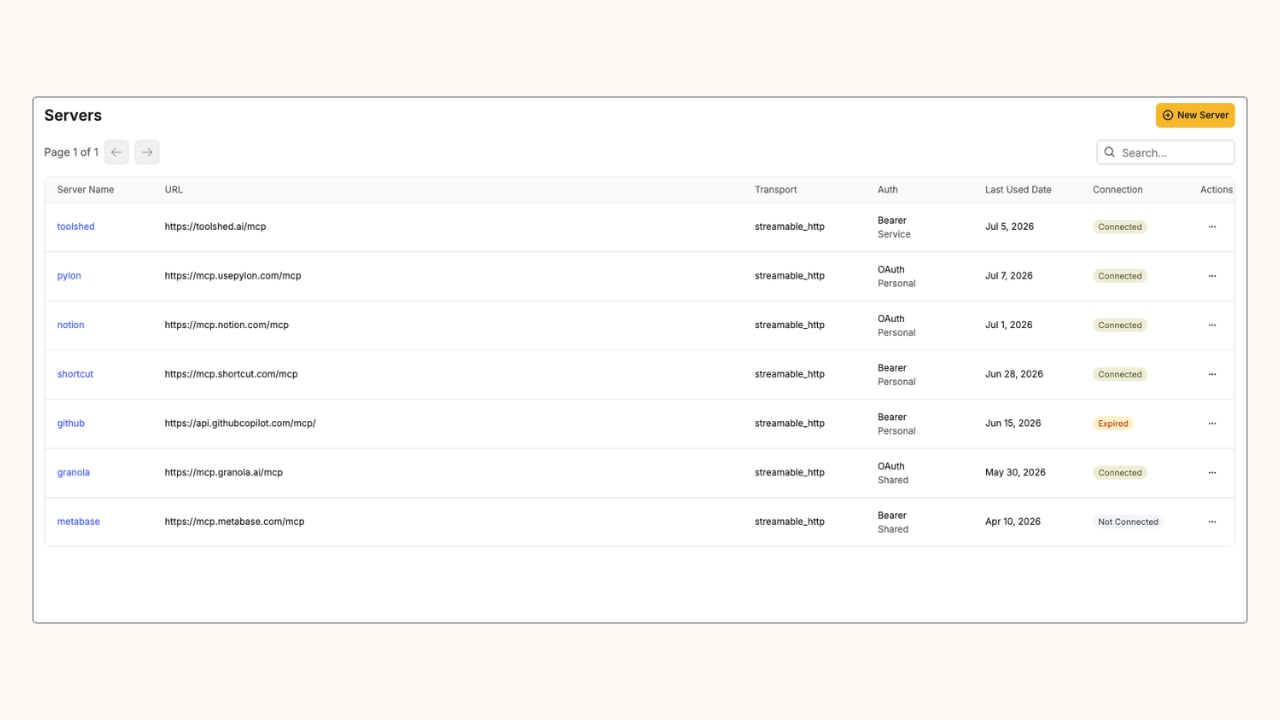 There are two core concepts on this page:
* **Servers** are the upstream MCP services registered with the gateway: GitHub, Notion, an internal API, or any service that speaks MCP. A server holds credentials, exposes a URL, and defines what capabilities are available.
* **Tools** are the individual functions a server exposes: `list_repos`, `create_issue`, `search_documents`, and so on. Tools are what agents actually call. Connect a server and its tools are discovered and kept in sync automatically.
One server exposes many tools. Access control, audit logging, and grants all operate at the tool level.
Account Owner or Admin permission is required to manage and modify servers and tools.
## Connecting a Server
In the MCP Management Console, navigate to the **Servers** tab and click **New Server**.
Enter a name for the server. Names must start with a letter and contain only lowercase letters, digits, hyphens, and underscores (e.g. `github`, `internal-api`). The name becomes the namespace prefix for all tools on this server. A server named `github` with a tool called `list_repos` becomes `github_list_repos`.
Enter the endpoint your upstream MCP server is running on.
Most servers use **Streamable HTTP**. Select **SSE** if your server requires it.
Choose the credential mode (**shared** or **personal**) and the auth type that matches how your upstream server expects to be authenticated. See [Server Authentication](#server-authentication) below.
Click **Save**. Aptible connects to the server and discovers its available tools.
## Server Authentication
Server authentication controls how the gateway talks to your upstream MCP server, separate from how end users authenticate to the gateway (see [Membership](/mcp-gateway/membership) for that). It comes down to two choices: **who** the credentials belong to, and **how** they're presented to the upstream server.
### Credential Mode
| Mode | How it works | When to use |
| ------------ | ------------------------------------------------------------------------------------------------- | ------------------------------------------------------------------------------------------------- |
| **Shared** | A single set of credentials is used for every call the gateway routes through this server. | Service accounts, internal APIs, or servers where the whole team acts as one identity. |
| **Personal** | Each user connects with their own credentials. Calls use that user's credentials on the upstream. | User-scoped services like GitHub, Notion, or Granola where actions should be attributed per user. |
Shared-mode credentials are configured by account owners and admins only. Personal-mode servers show a **Connect** button for users who haven't yet connected, and a **Reconnect** button when re-authorization is needed. The **Auth** column on the Servers list shows both the credential mode and auth type (e.g. `oauth / personal`, `bearer / shared`).
### Auth Type
| Auth type | When to use |
| ------------------ | ------------------------------------------------------------------------------------- |
| **None** | The upstream server requires no authentication. |
| **Bearer** | The server accepts a static bearer token in the `Authorization` header. |
| **Custom headers** | The server requires one or more custom HTTP headers. |
| **OAuth** | The server supports OAuth 2.0 with PKCE. Aptible manages token refresh automatically. |
For **OAuth** servers, clicking **Save** (or **Connect** in personal mode) redirects you to the upstream service to complete authorization. Aptible performs Dynamic Client Registration automatically if the server supports it.
## Tool Discovery
After a server is saved and authorized, Aptible fetches its list of available tools. Each tool is namespaced under the server name: `github_list_repos`, `notion_search`, etc. The **Tools** column on the Servers list shows the count of discovered tools.
Tool definitions refresh automatically. If a server shows **Re-authorize**, the gateway's credentials need to be renewed before tool calls will succeed.
### View Your Tools
There are two core concepts on this page:
* **Servers** are the upstream MCP services registered with the gateway: GitHub, Notion, an internal API, or any service that speaks MCP. A server holds credentials, exposes a URL, and defines what capabilities are available.
* **Tools** are the individual functions a server exposes: `list_repos`, `create_issue`, `search_documents`, and so on. Tools are what agents actually call. Connect a server and its tools are discovered and kept in sync automatically.
One server exposes many tools. Access control, audit logging, and grants all operate at the tool level.
Account Owner or Admin permission is required to manage and modify servers and tools.
## Connecting a Server
In the MCP Management Console, navigate to the **Servers** tab and click **New Server**.
Enter a name for the server. Names must start with a letter and contain only lowercase letters, digits, hyphens, and underscores (e.g. `github`, `internal-api`). The name becomes the namespace prefix for all tools on this server. A server named `github` with a tool called `list_repos` becomes `github_list_repos`.
Enter the endpoint your upstream MCP server is running on.
Most servers use **Streamable HTTP**. Select **SSE** if your server requires it.
Choose the credential mode (**shared** or **personal**) and the auth type that matches how your upstream server expects to be authenticated. See [Server Authentication](#server-authentication) below.
Click **Save**. Aptible connects to the server and discovers its available tools.
## Server Authentication
Server authentication controls how the gateway talks to your upstream MCP server, separate from how end users authenticate to the gateway (see [Membership](/mcp-gateway/membership) for that). It comes down to two choices: **who** the credentials belong to, and **how** they're presented to the upstream server.
### Credential Mode
| Mode | How it works | When to use |
| ------------ | ------------------------------------------------------------------------------------------------- | ------------------------------------------------------------------------------------------------- |
| **Shared** | A single set of credentials is used for every call the gateway routes through this server. | Service accounts, internal APIs, or servers where the whole team acts as one identity. |
| **Personal** | Each user connects with their own credentials. Calls use that user's credentials on the upstream. | User-scoped services like GitHub, Notion, or Granola where actions should be attributed per user. |
Shared-mode credentials are configured by account owners and admins only. Personal-mode servers show a **Connect** button for users who haven't yet connected, and a **Reconnect** button when re-authorization is needed. The **Auth** column on the Servers list shows both the credential mode and auth type (e.g. `oauth / personal`, `bearer / shared`).
### Auth Type
| Auth type | When to use |
| ------------------ | ------------------------------------------------------------------------------------- |
| **None** | The upstream server requires no authentication. |
| **Bearer** | The server accepts a static bearer token in the `Authorization` header. |
| **Custom headers** | The server requires one or more custom HTTP headers. |
| **OAuth** | The server supports OAuth 2.0 with PKCE. Aptible manages token refresh automatically. |
For **OAuth** servers, clicking **Save** (or **Connect** in personal mode) redirects you to the upstream service to complete authorization. Aptible performs Dynamic Client Registration automatically if the server supports it.
## Tool Discovery
After a server is saved and authorized, Aptible fetches its list of available tools. Each tool is namespaced under the server name: `github_list_repos`, `notion_search`, etc. The **Tools** column on the Servers list shows the count of discovered tools.
Tool definitions refresh automatically. If a server shows **Re-authorize**, the gateway's credentials need to be renewed before tool calls will succeed.
### View Your Tools
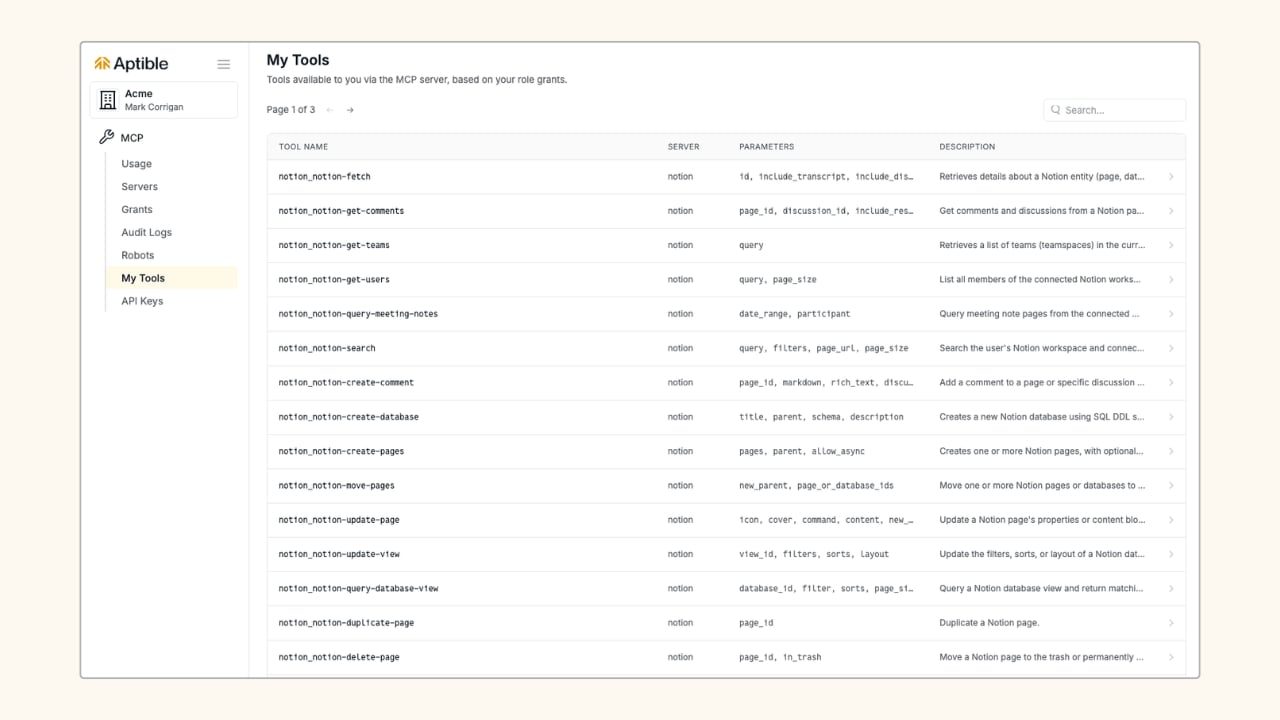 Navigate to **MCP > My Tools** to see every tool available to you based on your grant memberships, along with the server it belongs to, its parameters, and a description.
## Next Steps
Connecting a server makes its tools available in the gateway but doesn't grant anyone access to them.
Scope which tools each user or agent can call.
Set up robots and API keys for automated pipelines.
Navigate to **MCP > My Tools** to see every tool available to you based on your grant memberships, along with the server it belongs to, its parameters, and a description.
## Next Steps
Connecting a server makes its tools available in the gateway but doesn't grant anyone access to them.
Scope which tools each user or agent can call.
Set up robots and API keys for automated pipelines.