> ## Documentation Index
> Fetch the complete documentation index at: https://www.aptible.com/docs/llms.txt
> Use this file to discover all available pages before exploring further.
# Membership
> Add users, robots, and API keys to grants so they can call tools through the gateway.
## Overview
Membership is how identities get attached to [grants](/mcp-gateway/grants). The gateway supports three types of members:
| Type | What it is | How it authenticates |
| ----------- | -------------------------------------------- | ----------------------------- |
| **User** | A person with an Aptible account | Session token or user API key |
| **Robot** | A non-human account for pipelines and agents | Robot API key (bearer token) |
| **API Key** | A scoped token tied to a user account | Bearer token |
All three types are added to grants the same way and are subject to the same access rules. Every call they make is written to the [audit log](/mcp-gateway/audit-logs).
Account Owner or Admin permission is required to add and manage users and robots. Any user can create their own API key.
## Robots
Robots are non-human accounts for automated pipelines and agents. They authenticate to the gateway with a bearer token and are attached to grants the same way user accounts are. Everything a robot calls is checked against its grants and written to the audit log.
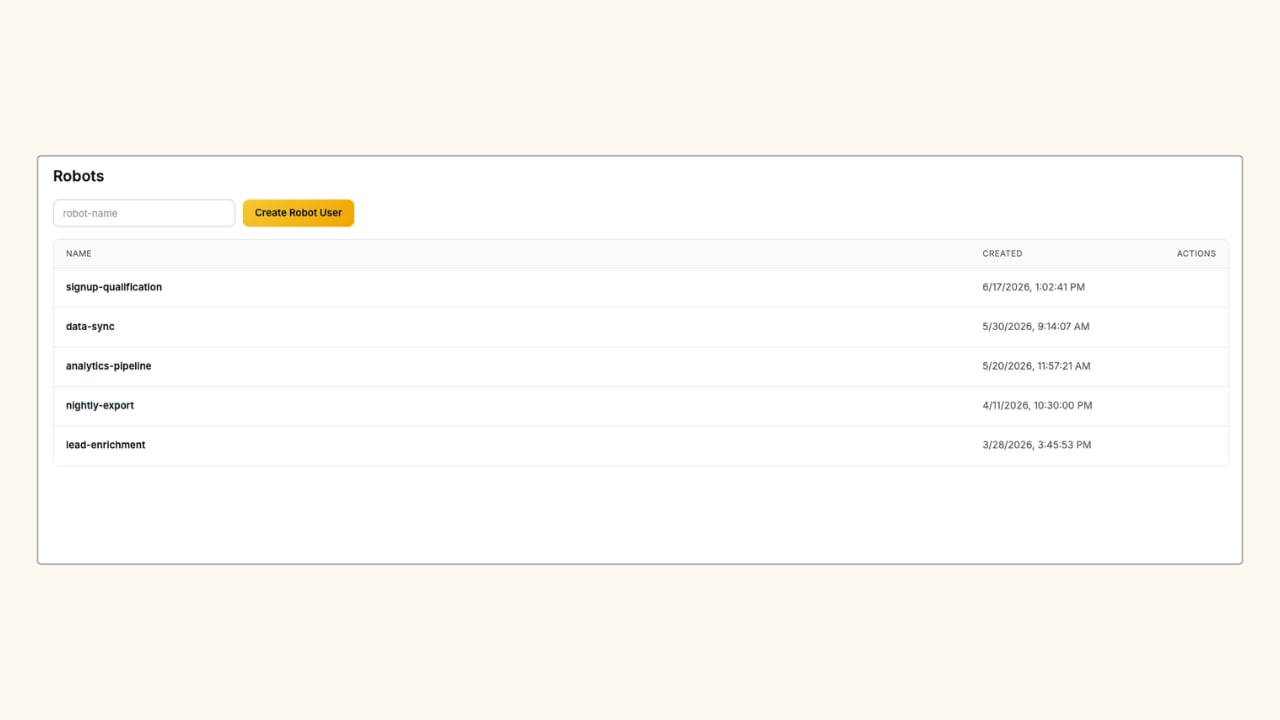 In the Aptible dashboard, navigate to **MCP > Robots**.
Enter a name and click **Create Robot User**.
Open the robot and click **+ Create API Key** to generate a token.
Robots appear in the **Users & Robots** selector on the Grant Details panel. Add them to a grant the same way you'd add a user.
## User API Keys
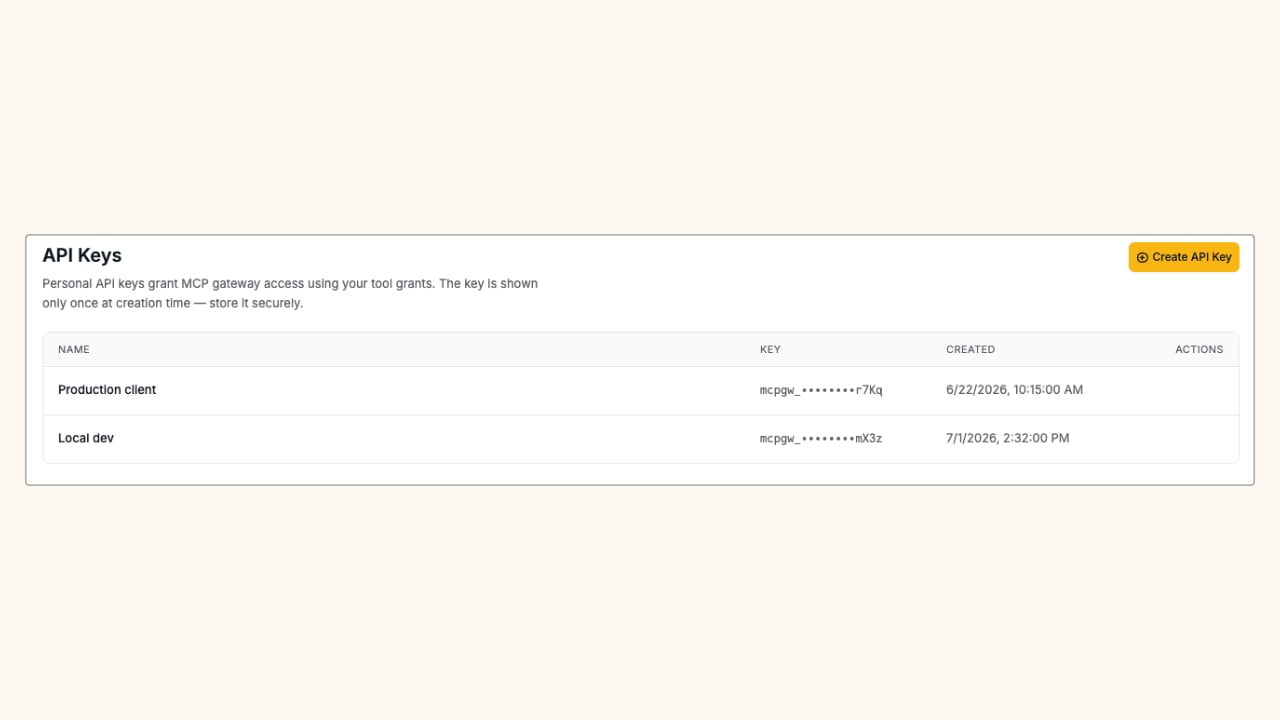
Any user can create an API key to authenticate to the gateway without using their Aptible session token. In the Aptible dashboard, navigate to **MCP > API Keys** to create and manage them.
In the Aptible dashboard, navigate to **MCP > Robots**.
Enter a name and click **Create Robot User**.
Open the robot and click **+ Create API Key** to generate a token.
Robots appear in the **Users & Robots** selector on the Grant Details panel. Add them to a grant the same way you'd add a user.
## User API Keys
Any user can create an API key to authenticate to the gateway without using their Aptible session token. In the Aptible dashboard, navigate to **MCP > API Keys** to create and manage them.
 ## Authenticating to the Gateway
Both robot tokens and user API keys are passed as a bearer token in the `Authorization` header when connecting an MCP client to the gateway endpoint:
```text theme={null}
Authorization: Bearer
```
For a full walkthrough of how to connect your MCP client to the gateway, see [Connecting to MCP Gateway](/mcp-gateway/connect).
## Related
Step-by-step guide for end users to get connected.
Attach members to a grant to give them tool access.
## Authenticating to the Gateway
Both robot tokens and user API keys are passed as a bearer token in the `Authorization` header when connecting an MCP client to the gateway endpoint:
```text theme={null}
Authorization: Bearer
```
For a full walkthrough of how to connect your MCP client to the gateway, see [Connecting to MCP Gateway](/mcp-gateway/connect).
## Related
Step-by-step guide for end users to get connected.
Attach members to a grant to give them tool access.