> ## Documentation Index
> Fetch the complete documentation index at: https://www.aptible.com/docs/llms.txt
> Use this file to discover all available pages before exploring further.
# Python + Flask - Demo App
> Deploy our Python demo app using the Flask framework with Managed PostgreSQL Database and Redis instance
# Overview
The following guide is designed to help you deploy an example app on Aptible. During this process, Aptible will launch containers to run a Python app with a web server, a background worker, a Managed PostgreSQL Database, and a Redis instance.
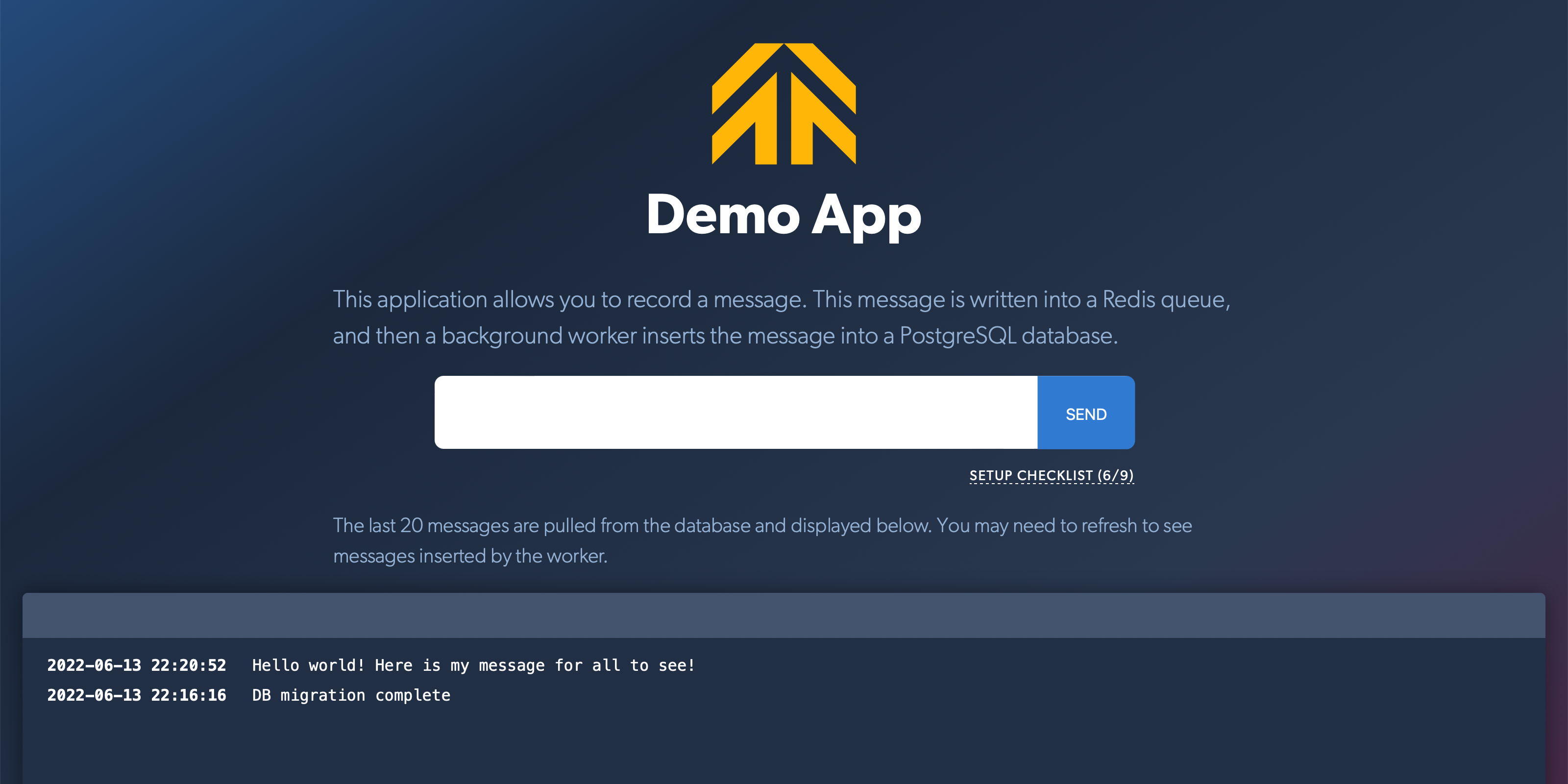 The demo app displays the last 20 messages of the database, including any additional messages you record via the "message board." The application was designed to guide new users through a "Setup Checklist" which showcases various features of the Aptible platform (such as database migration, scaling, etc.) using both the dashboard and Aptible CLI.
# Deploy App
Prerequisite: Ensure you have [Git](https://git-scm.com/downloads) installed.
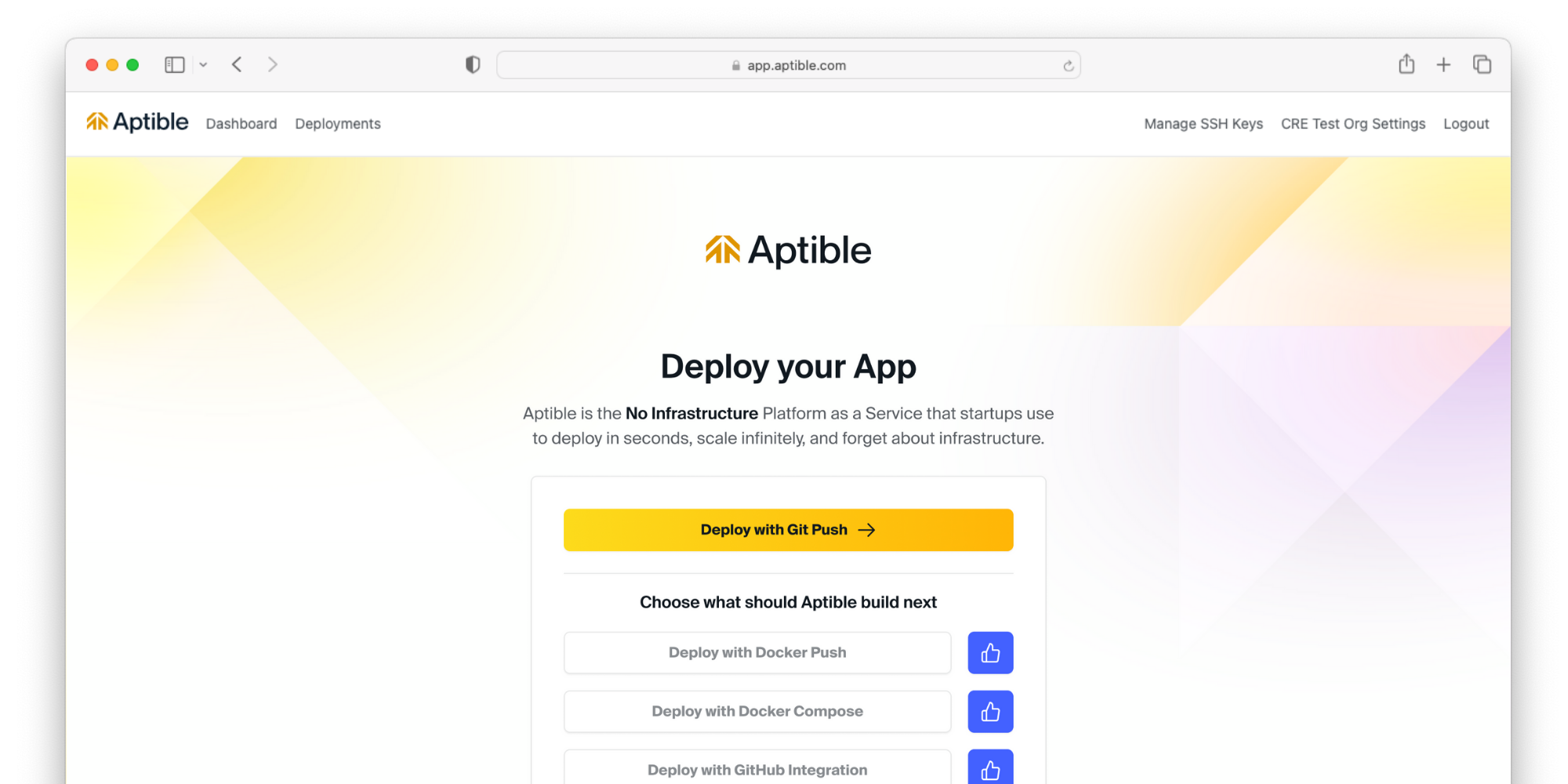
Using the [Deploy Code](https://app.aptible.com/create) tool in the Aptible Dashboard, you can deploy the **Deploy Demo App**. The tool will guide you through the following:
The demo app displays the last 20 messages of the database, including any additional messages you record via the "message board." The application was designed to guide new users through a "Setup Checklist" which showcases various features of the Aptible platform (such as database migration, scaling, etc.) using both the dashboard and Aptible CLI.
# Deploy App
Prerequisite: Ensure you have [Git](https://git-scm.com/downloads) installed.
Using the [Deploy Code](https://app.aptible.com/create) tool in the Aptible Dashboard, you can deploy the **Deploy Demo App**. The tool will guide you through the following:
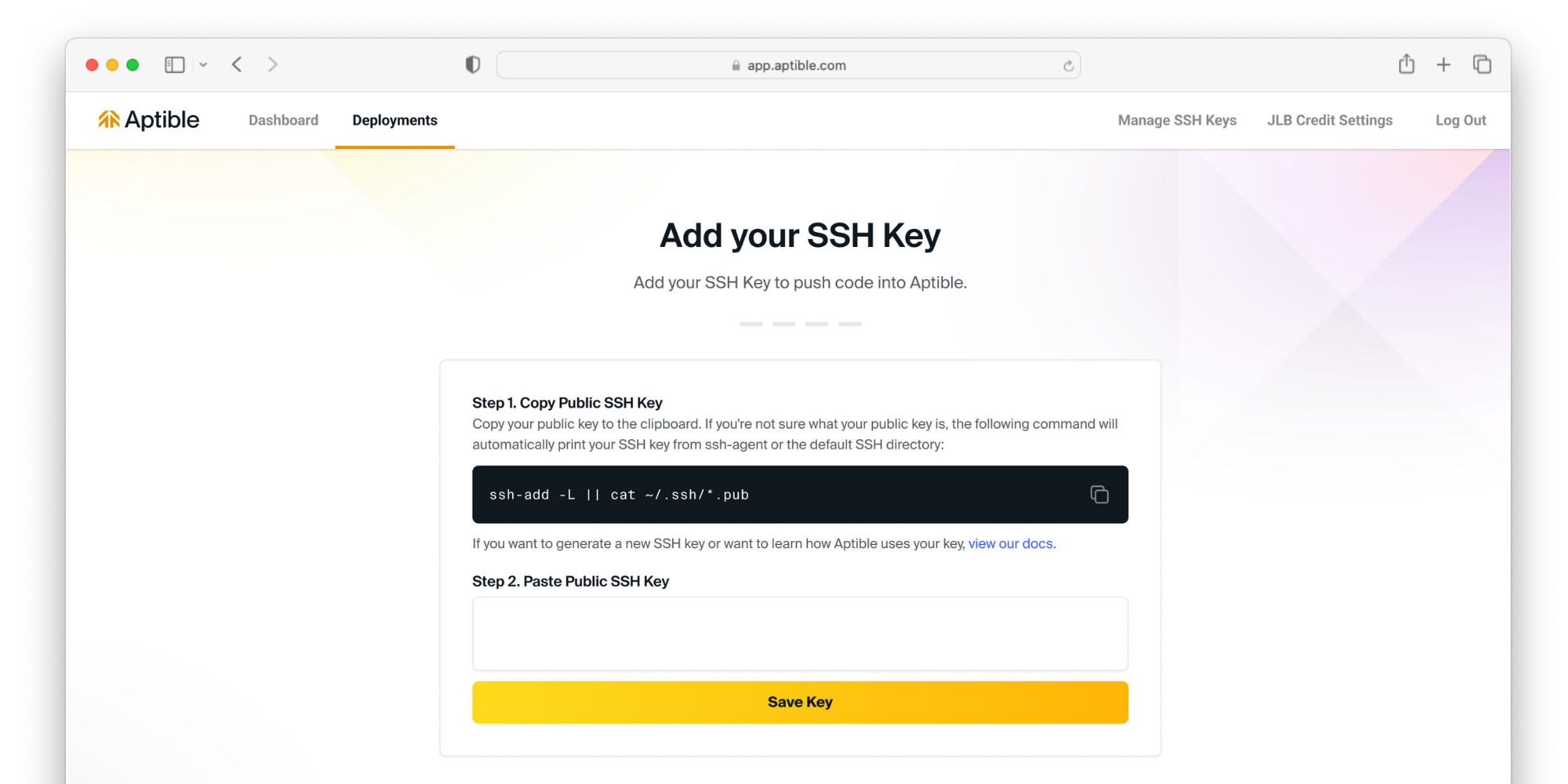 If you have not done so already, you will be prompted to set up an [SSH key](/core-concepts/security-compliance/authentication/ssh-keys#ssh-keys).
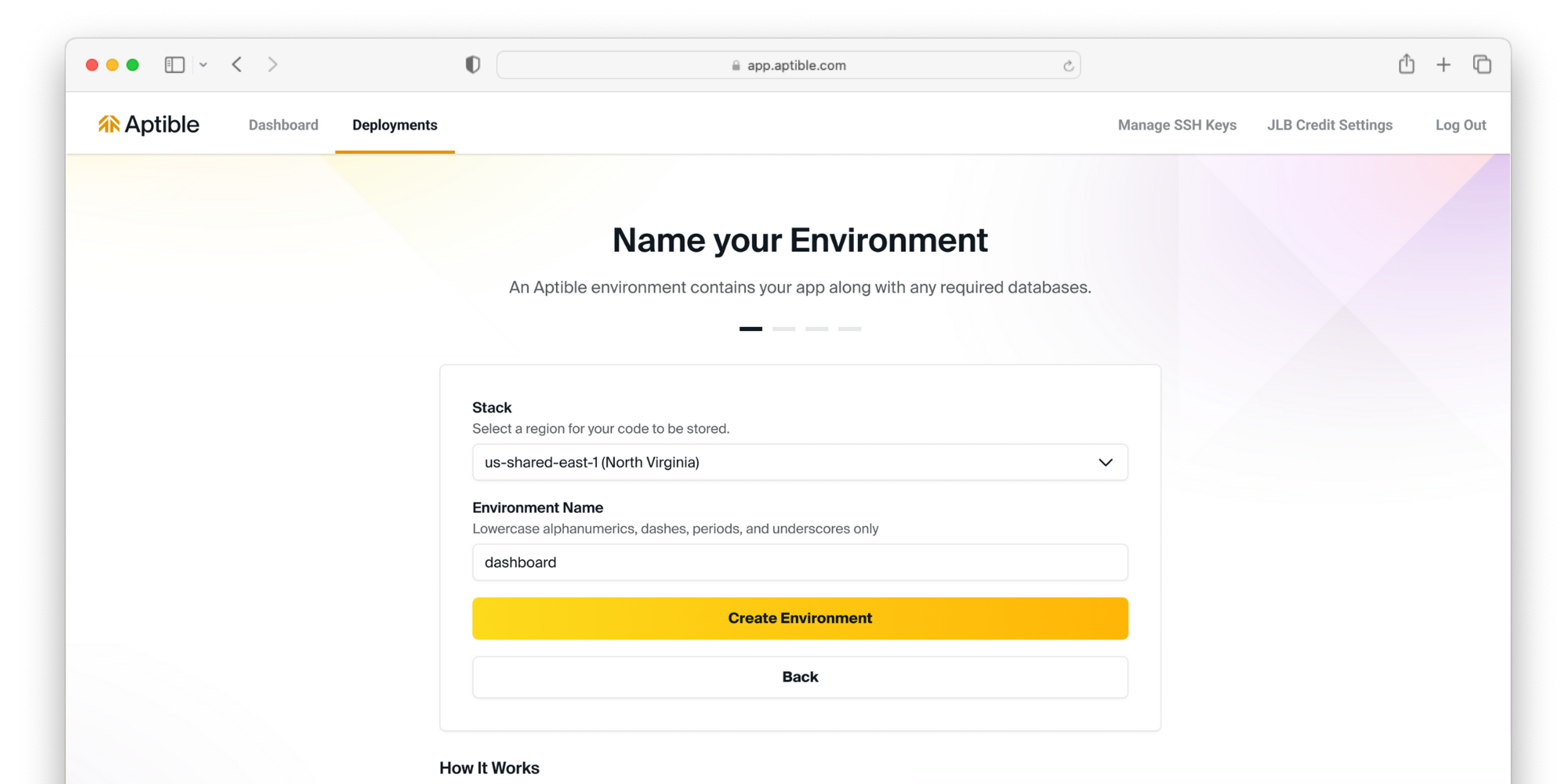 Select your [stack](/core-concepts/architecture/stacks) to deploy your resources. This will determine what region your resources are deployed to. Then, name the [environment](/core-concepts/architecture/environments) your resources will be grouped into.
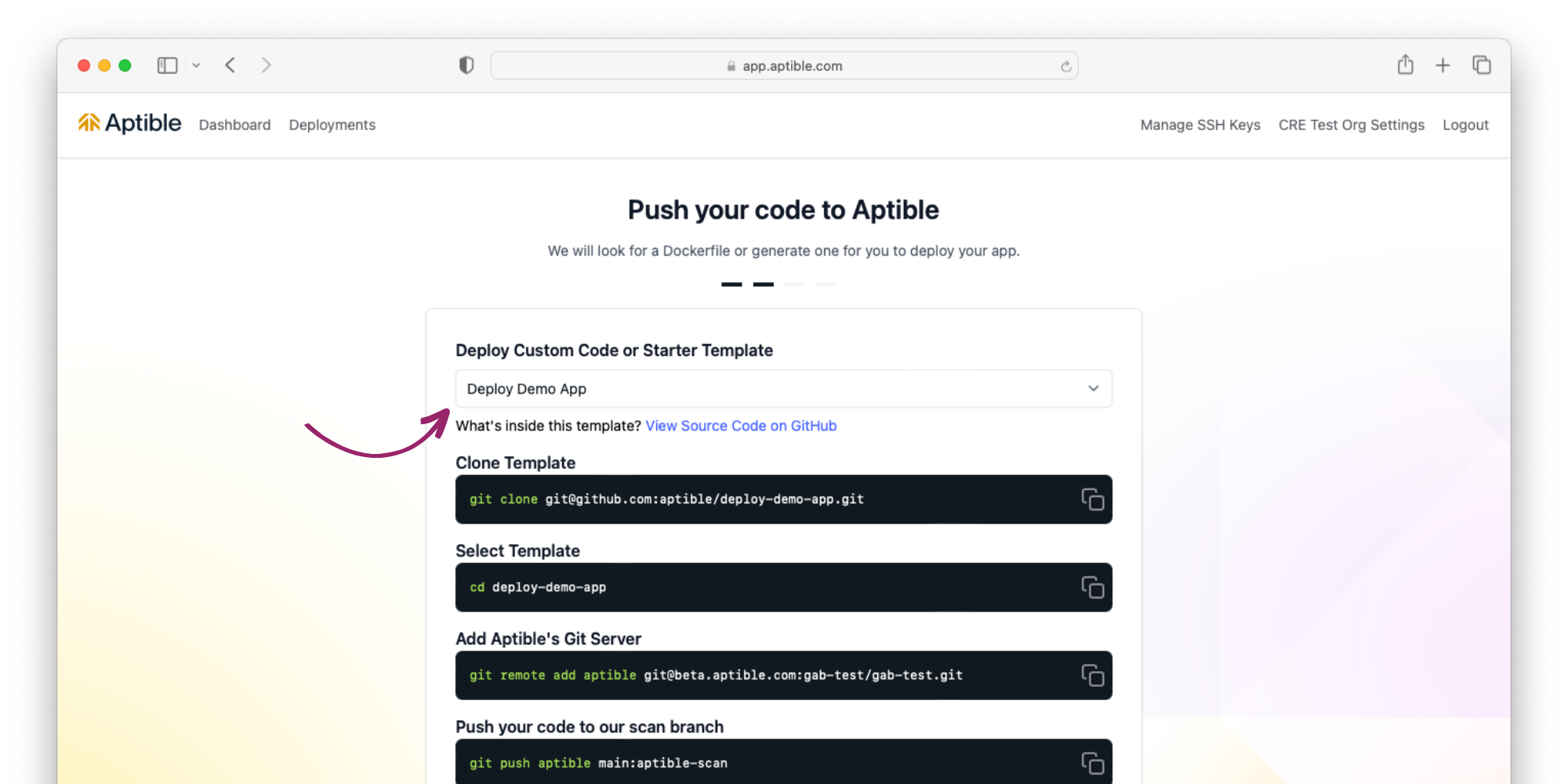 Select **Deploy Demo App** for deployment, and follow command-line instructions.
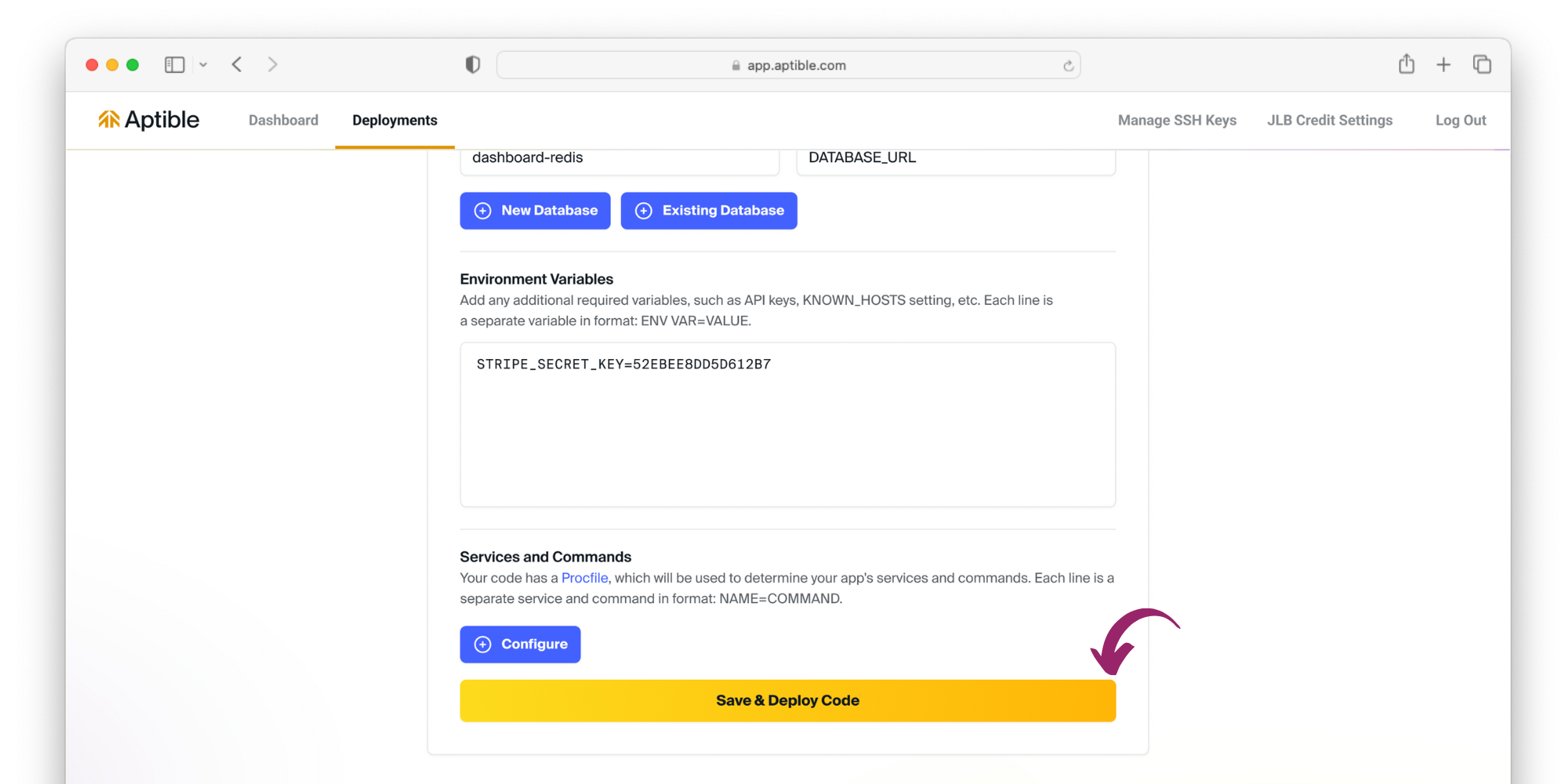 Aptible will automatically fill this template's app configuration, services, and required databases. This includes: a web server, a background worker, a Managed PostgreSQL Database, and a Redis instance. All you have to do is fill the complete the environment variables save and deploy the code!
Aptible will show you the logs in live time:
Aptible will automatically fill this template's app configuration, services, and required databases. This includes: a web server, a background worker, a Managed PostgreSQL Database, and a Redis instance. All you have to do is fill the complete the environment variables save and deploy the code!
Aptible will show you the logs in live time:
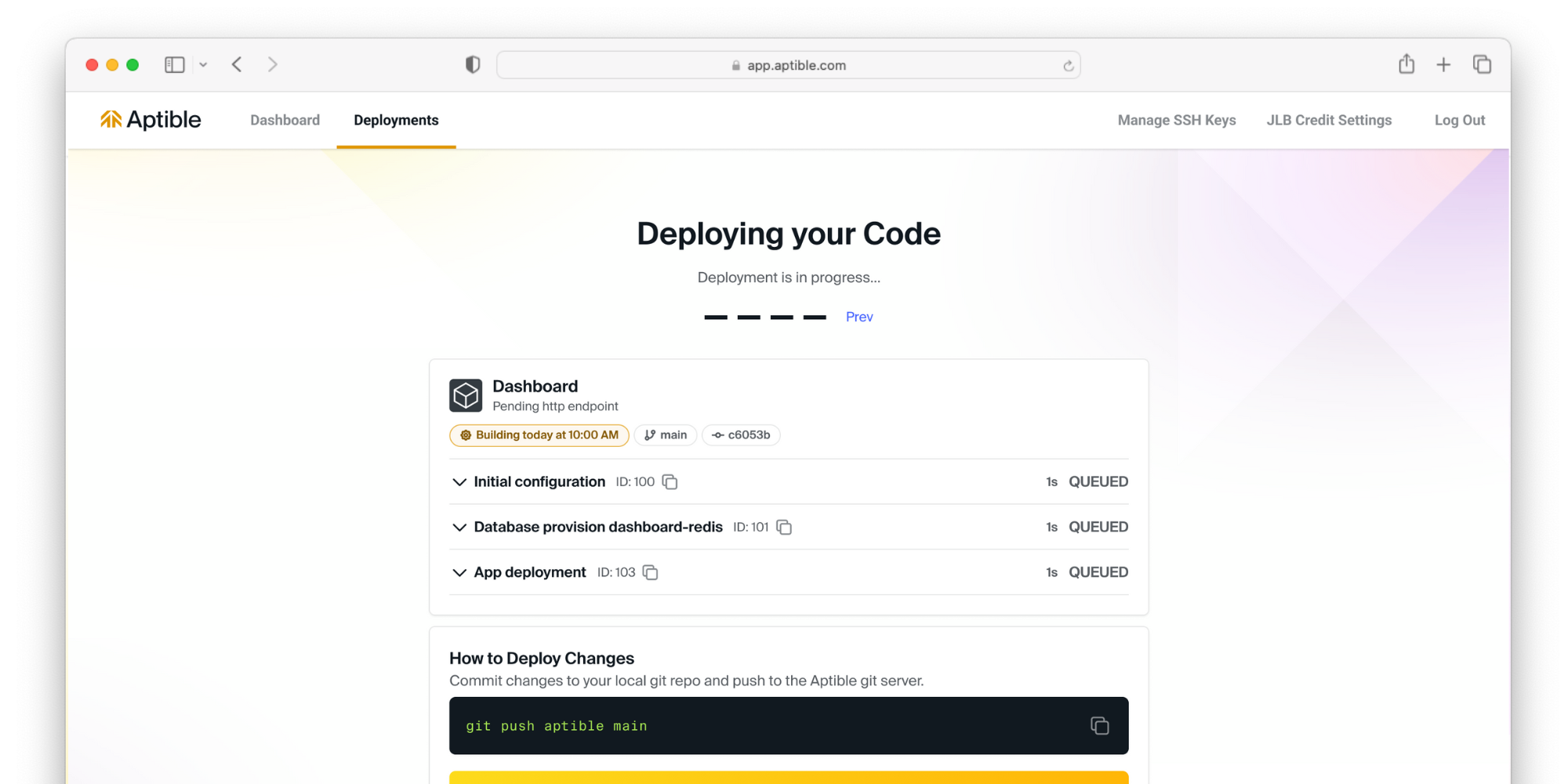
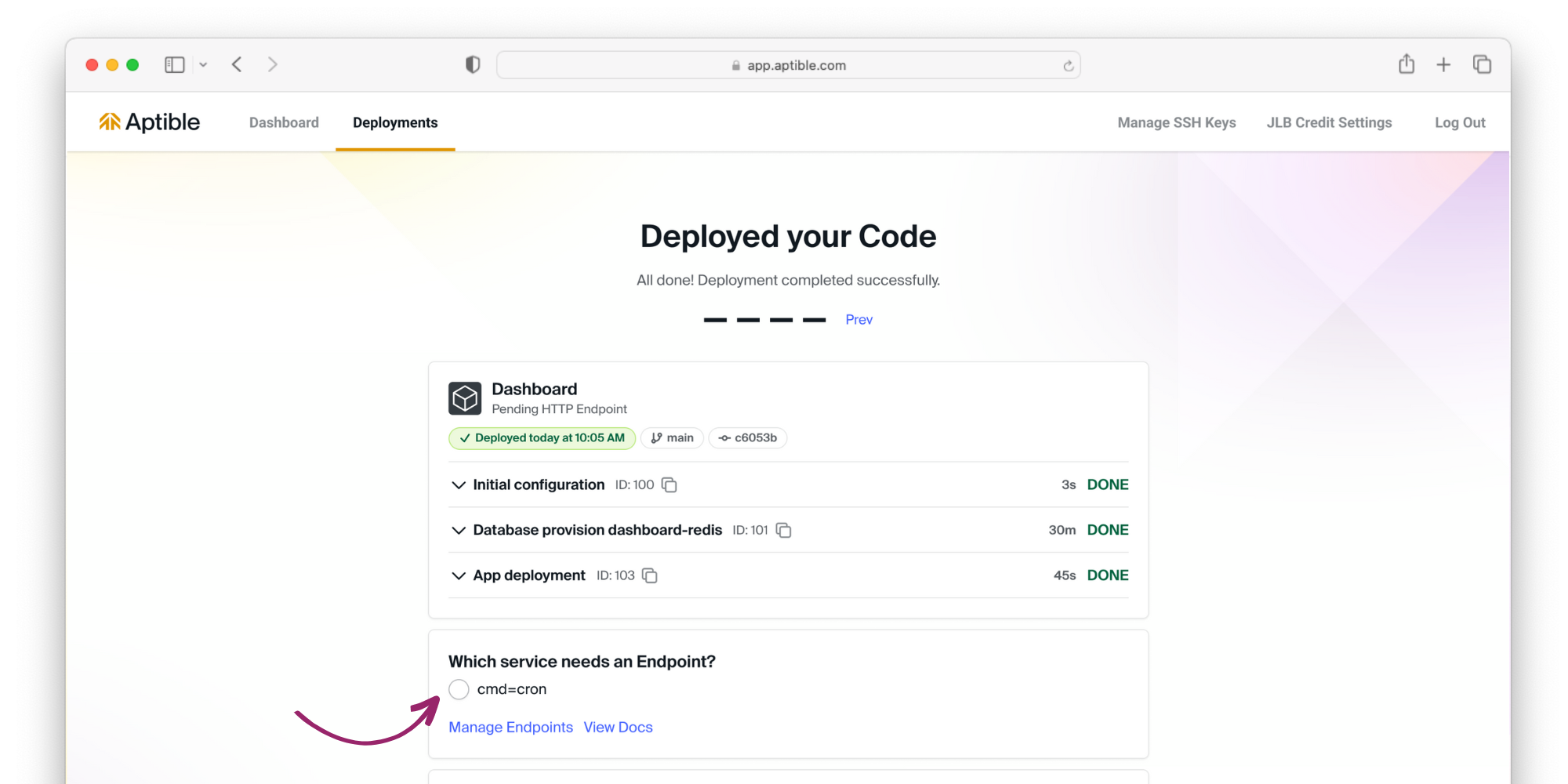 Now that your code is deployed, it's time to expose your app to the internet. Select the service that needs an [endpoint](/core-concepts/apps/connecting-to-apps/app-endpoints/overview), and Aptible will automatically provision a managed endpoint.
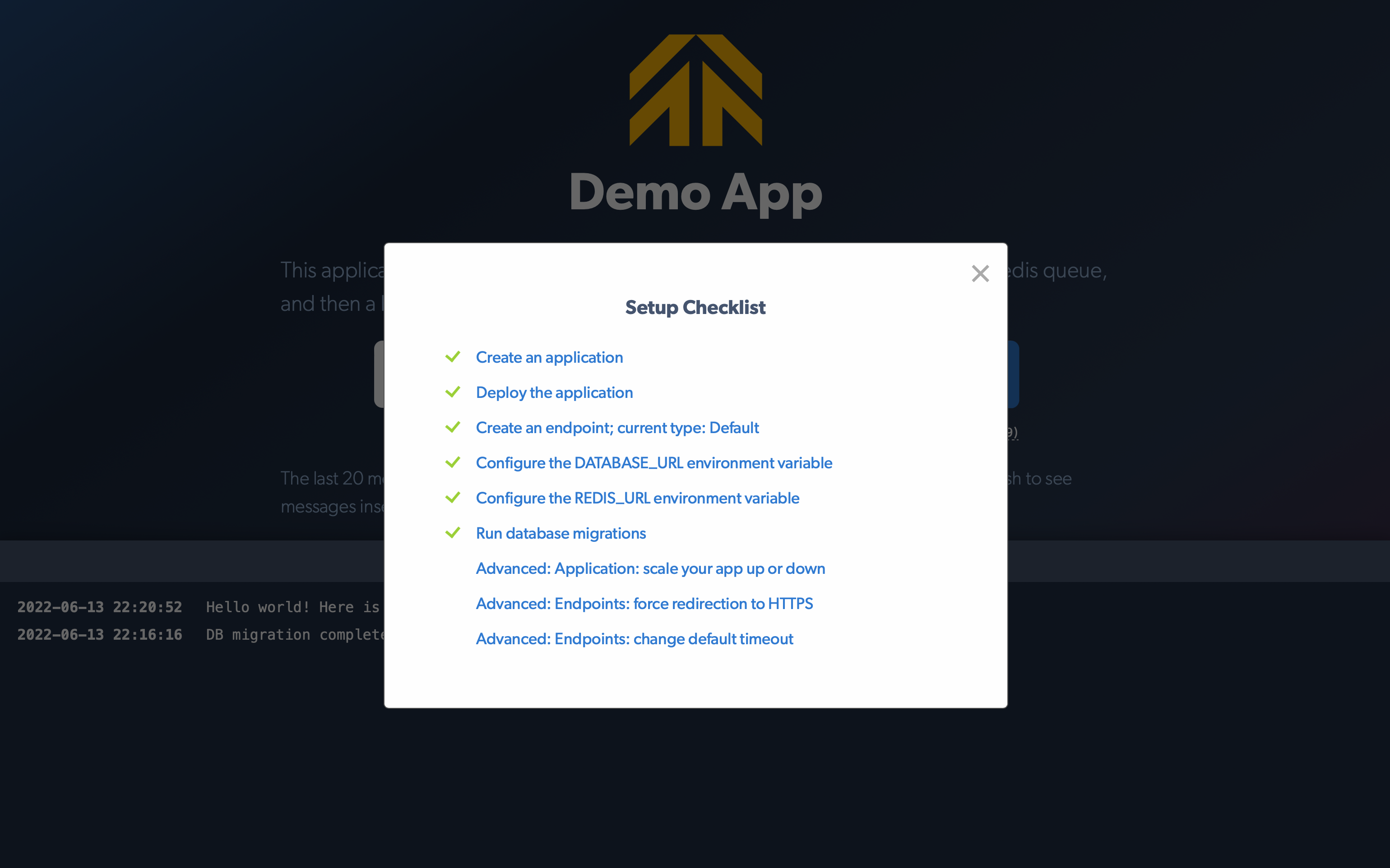 From here, you can optionally test the application's message board and/or "Setup Checklist."
# Continue your journey
Read our guide for deploying custom code on Aptible.
From here, you can optionally test the application's message board and/or "Setup Checklist."
# Continue your journey
Read our guide for deploying custom code on Aptible.