> ## Documentation Index
> Fetch the complete documentation index at: https://www.aptible.com/docs/llms.txt
> Use this file to discover all available pages before exploring further.
# Deploy your custom code
> Learn how to deploy your custom code on Aptible
## Overview
The following guide is designed to help you deploy custom code on Aptible. During this process, Aptible will launch containers to run your custom app and Managed Databases for any data stores, like PostgreSQL, Redis, etc., that your app requires to run.
## Compatibility
Aptible supports many frameworks; you can deploy any code that meets the following requirements:
* **Apps must run on Linux in Docker containers**
* To run an app on Aptible, you must provide Aptible with a Dockerfile. To that extent, all apps on Aptible must be able to run Linux in Docker containers.
New to Docker? [Check out Docker’s getting started guide](https://docs.docker.com/get-started/).
* **Apps may only receive traffic over HTTP or TCP.**
* App endpoints (load balancers) are how you expose your Aptible app to the Internet. These endpoints only support traffic received over HTTP or TCP. While you cannot serve UDP services from Aptible, you may still connect to UDP services (such as DNS, SNMP, etc.) from apps hosted on Aptible.
* **Apps must not depend on persistent storage.**
* App containers on Aptible are ephemeral and cannot be used for data persistence. To store your data with persistence, we recommend using a [Database](http://aptible.com/docs/databases) or third-party storage solution, such as AWS S3. Apps that rely on persistent local storage or a volume shared between multiple containers must be re-architected to run on Aptible. If you have questions about doing so, contact [Aptible Support](/how-to-guides/troubleshooting/aptible-support) for assistance.
# Deploy Code
Prerequisites: Ensure you have [Git](https://git-scm.com/downloads) installed, a Git repository with your application code, and a [Dockerfile](/core-concepts/apps/deploying-apps/image/deploying-with-git/overview) ready to deploy.
Using the Deploy Code tool in the Aptible Dashboard, you can deploy Custom Code. The tool will guide you through the following:
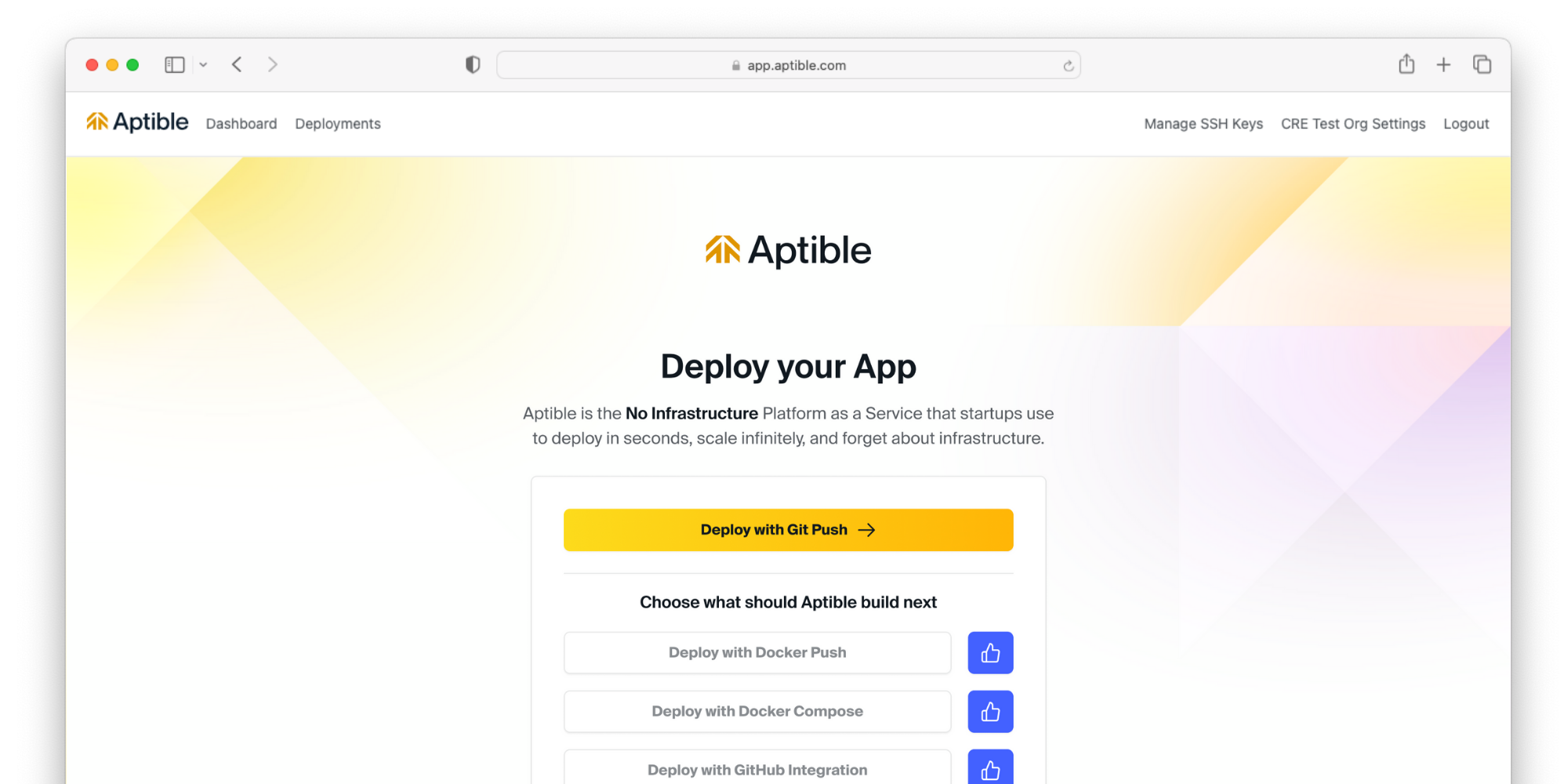
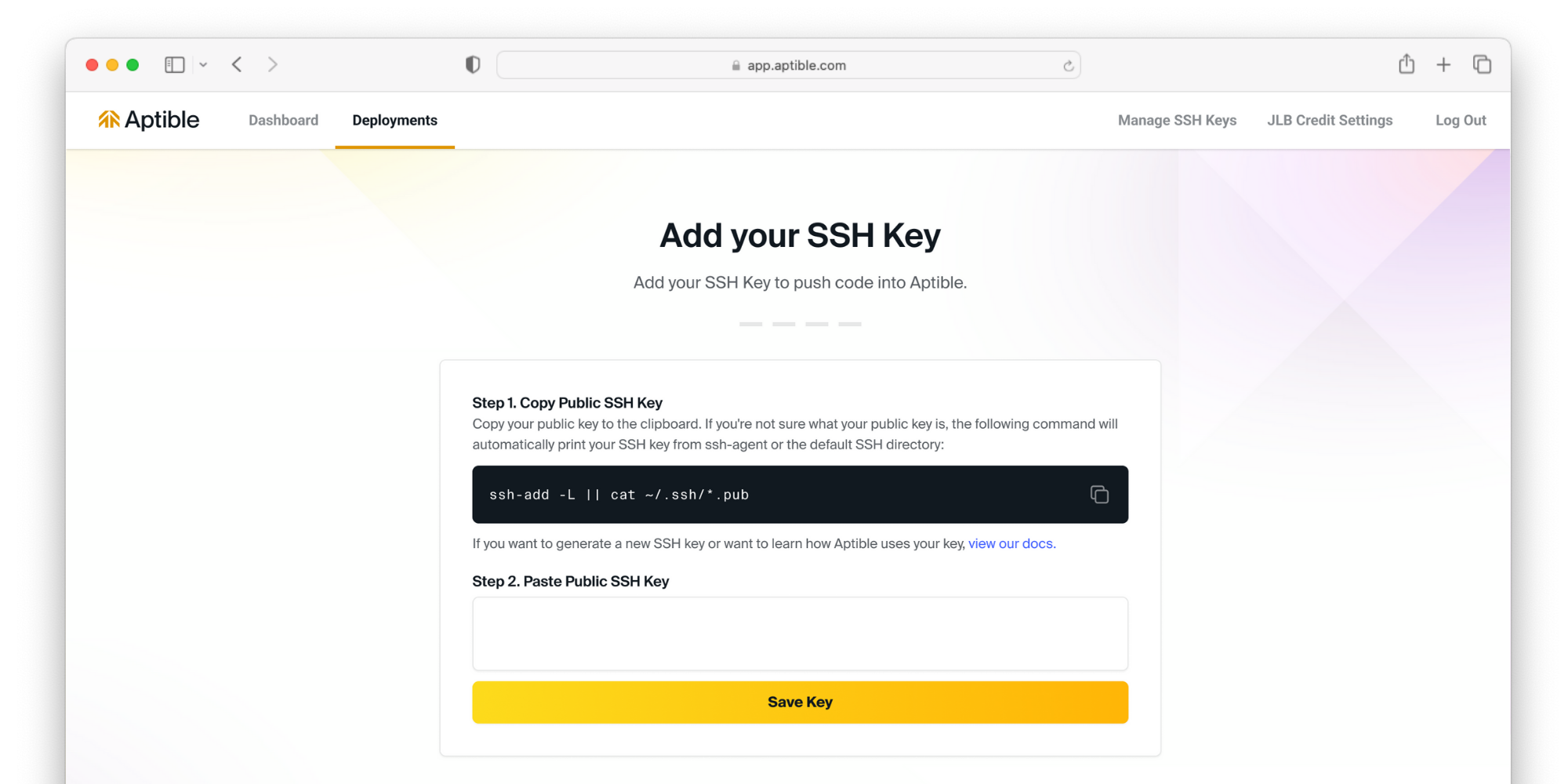 If you have not done so already, you will be prompted to set up an [SSH key](/core-concepts/security-compliance/authentication/ssh-keys#ssh-keys).
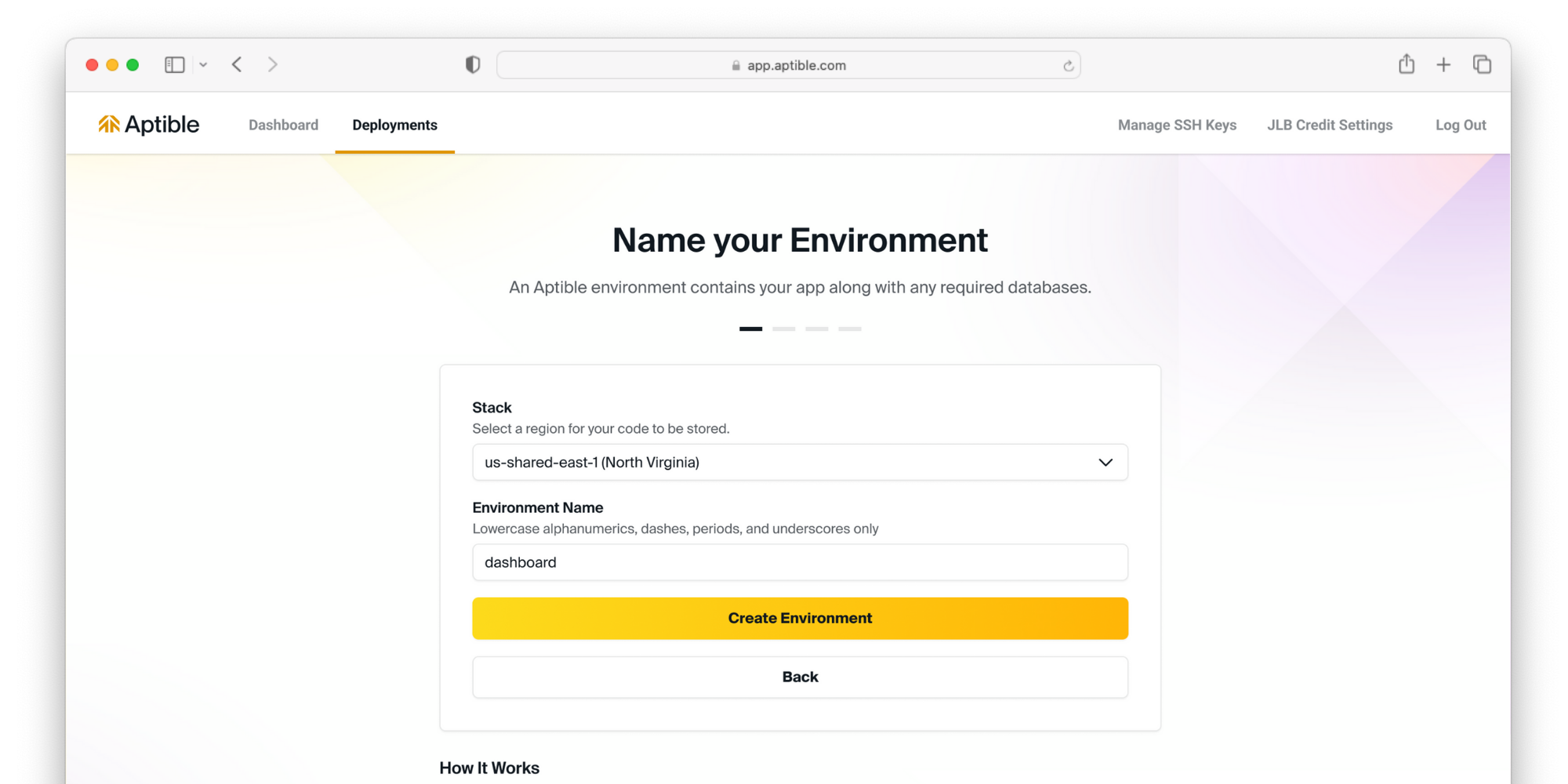 Select your [stack](/core-concepts/architecture/stacks) to deploy your resources. This will determine what region your resources are deployed to. Then, name the [environment](/core-concepts/architecture/environments) your resources will be grouped into.
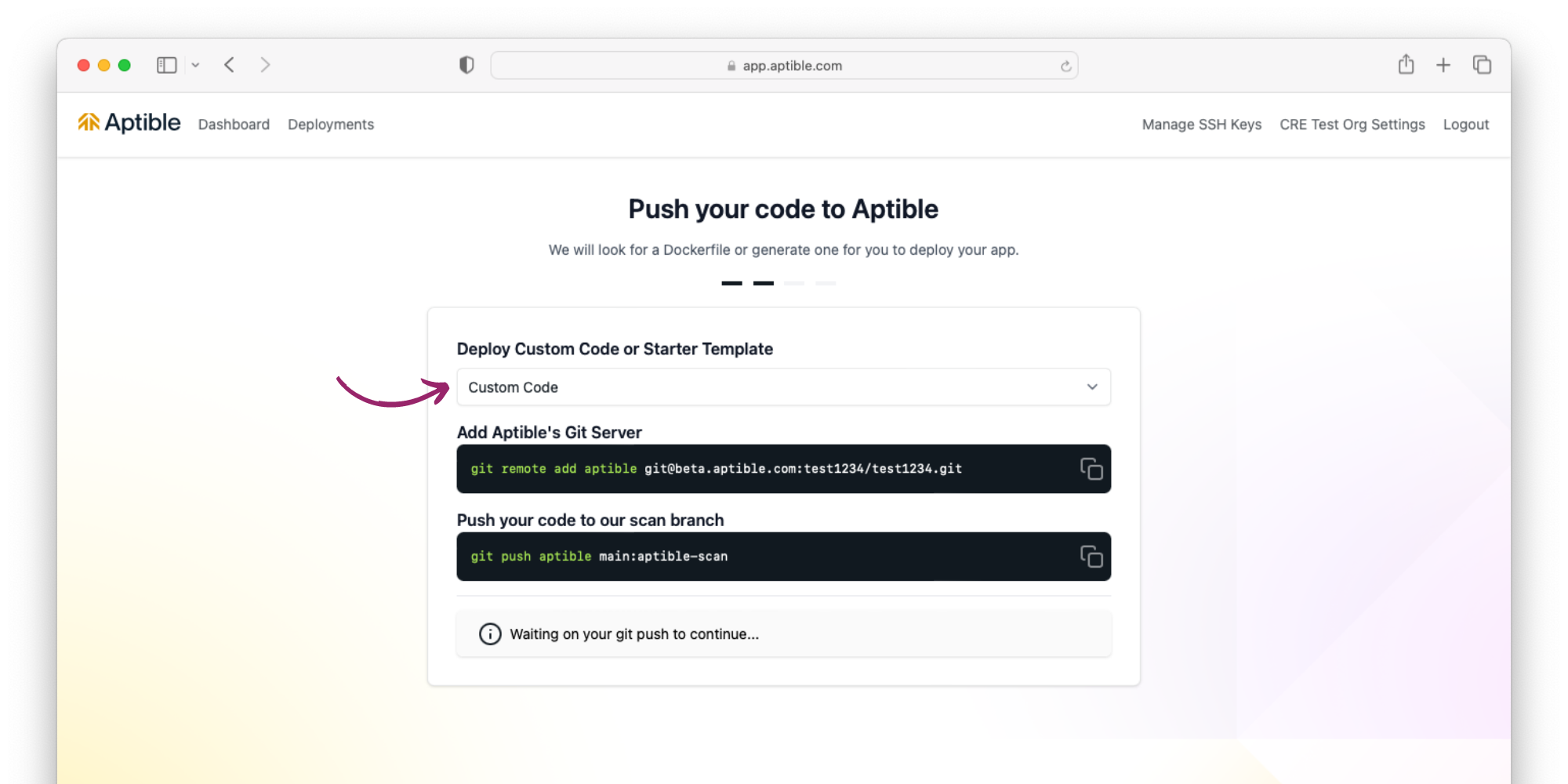 Select **Custom Code** deployment, and from your command-line interface, add Aptible’s Git Server and push your code to our scan branch using the commands in the Aptible Dashboard
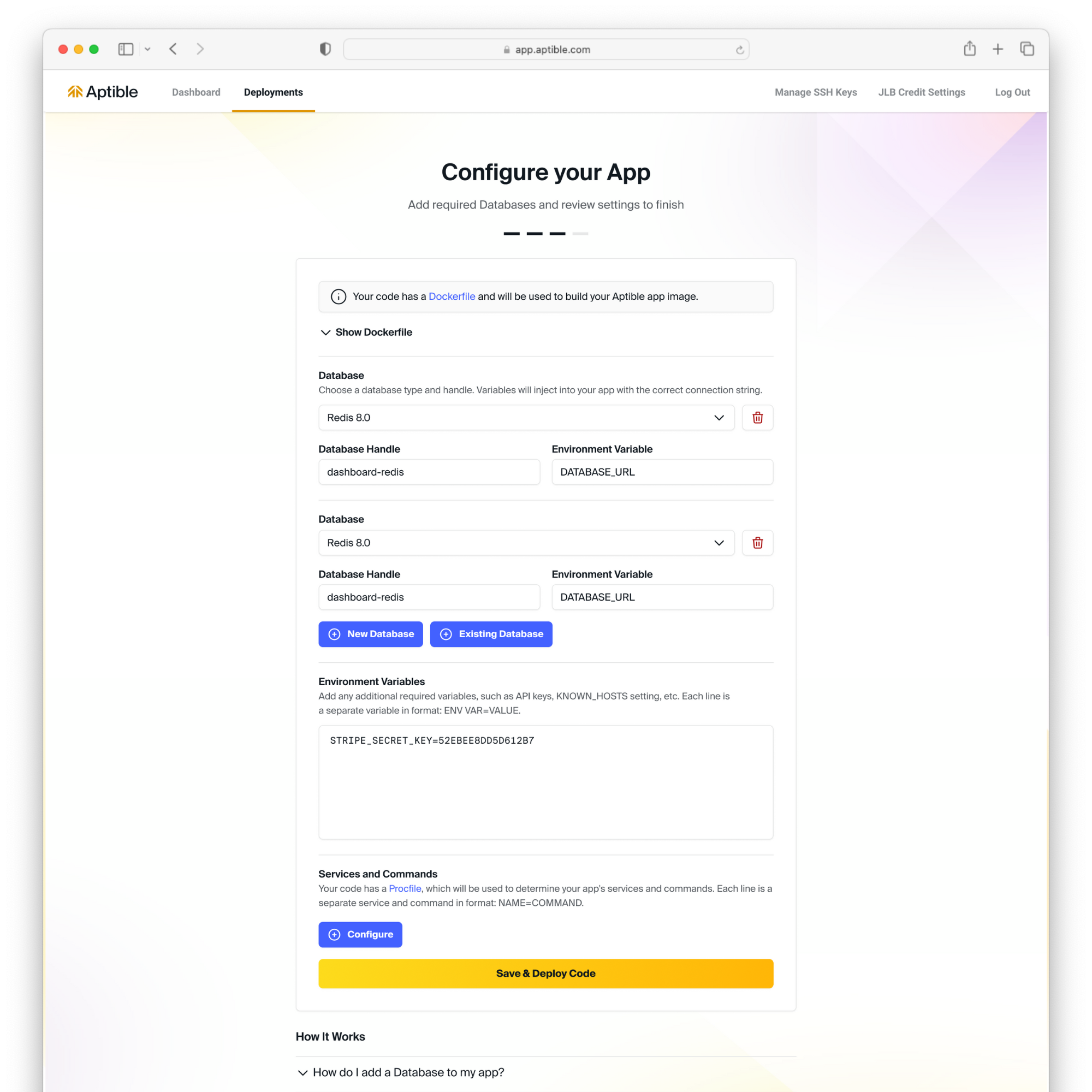 Optionally, provision a database, configure your app with [environment variables](/core-concepts/apps/deploying-apps/configuration#configuration-variables), or add additional [services](/core-concepts/apps/deploying-apps/services) and commands.
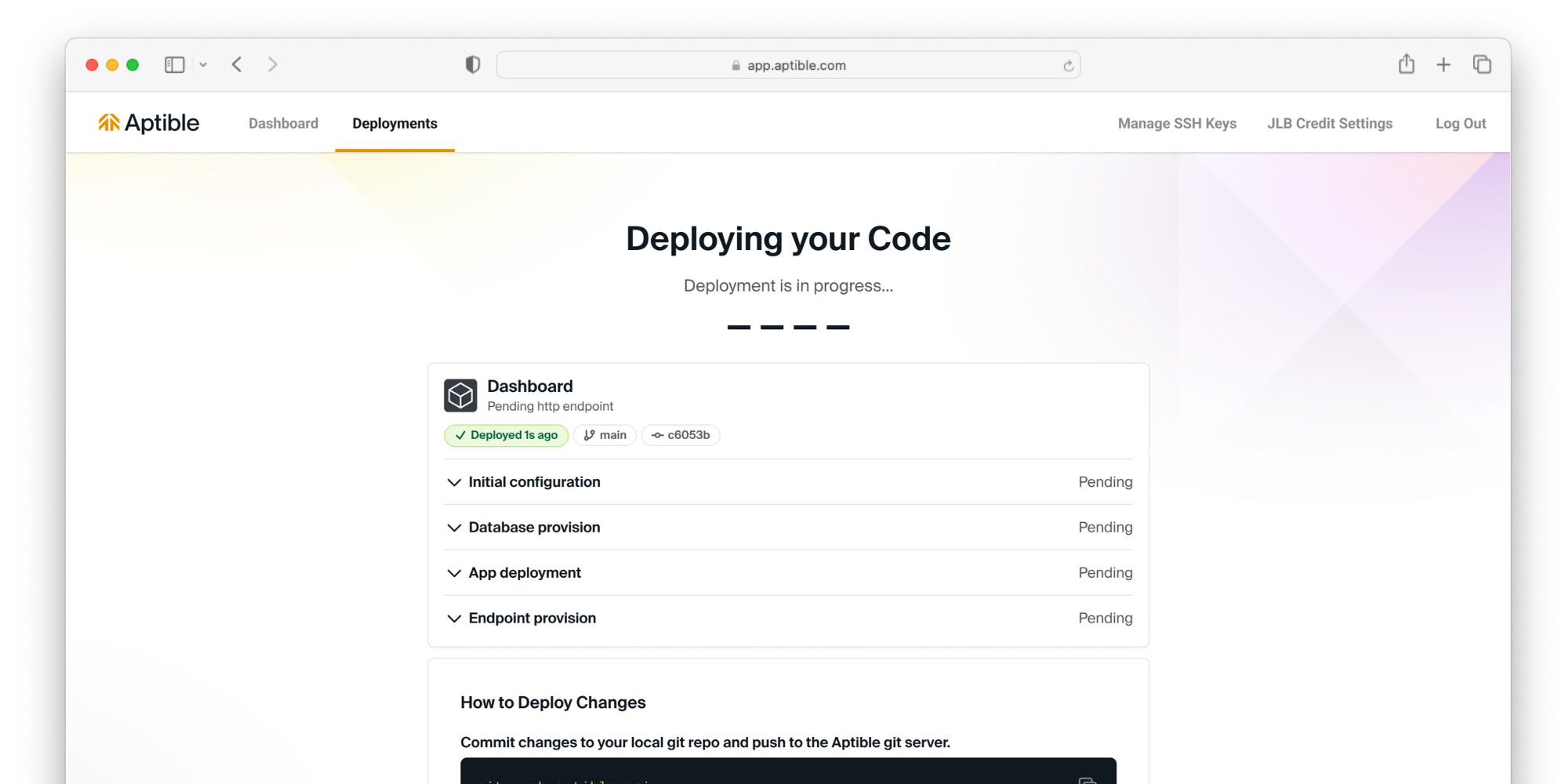 Deploy your code and view [logs](/core-concepts/observability/logs/overview) in real time
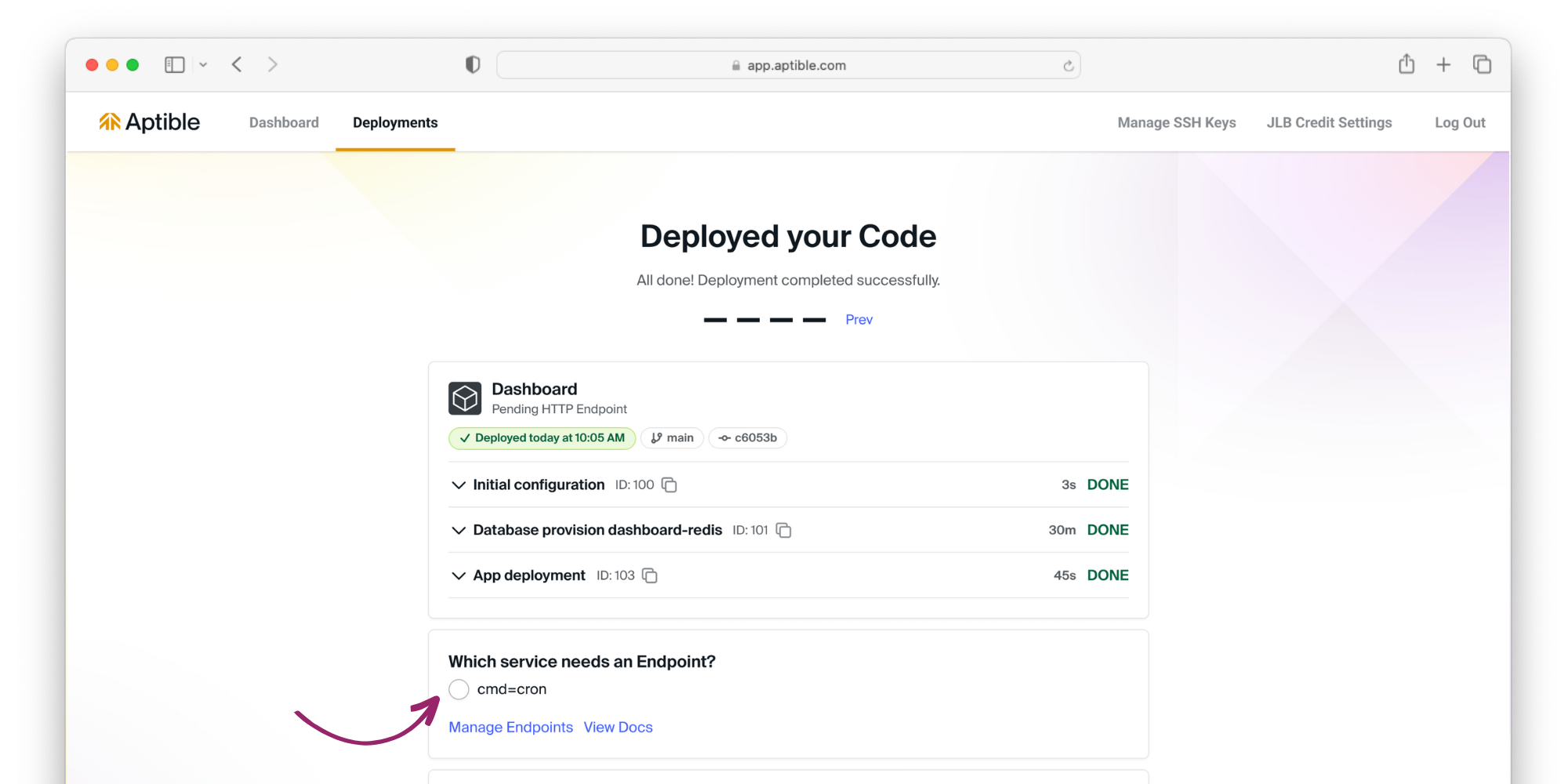 Now that your code is deployed, it's time to expose your app to the internet. Select the service that needs an [endpoint](/core-concepts/apps/connecting-to-apps/app-endpoints/overview), and Aptible will automatically provision a managed endpoint.