> ## Documentation Index
> Fetch the complete documentation index at: https://www.aptible.com/docs/llms.txt
> Use this file to discover all available pages before exploring further.
# SSH Keys
> Learn about using SSH Keys to authenticate with Aptible
## Overview
Public Key Authentication is a secure method for authentication, and how Aptible authenticates deployments initiated by pushing to an [App](/core-concepts/apps/overview)'s [Git Remote](/how-to-guides/app-guides/deploy-from-git#git-remote). You must provide a public SSH key to set up Public Key Authentication.
If SSO is enabled for your Aptible organization, attempts to use the git remote will return an `App not found or not accessible` error. Users must be added to the [allowlist](/core-concepts/security-compliance/authentication/sso#exempt-users-from-sso-requirement) to access your Organization's resources via Git.
## Supported SSH Key Types
Aptible supports the following SSH key types:
* ssh-rsa
* ssh-ed25519
* ssh-dss
## Adding/Managing SSH Keys
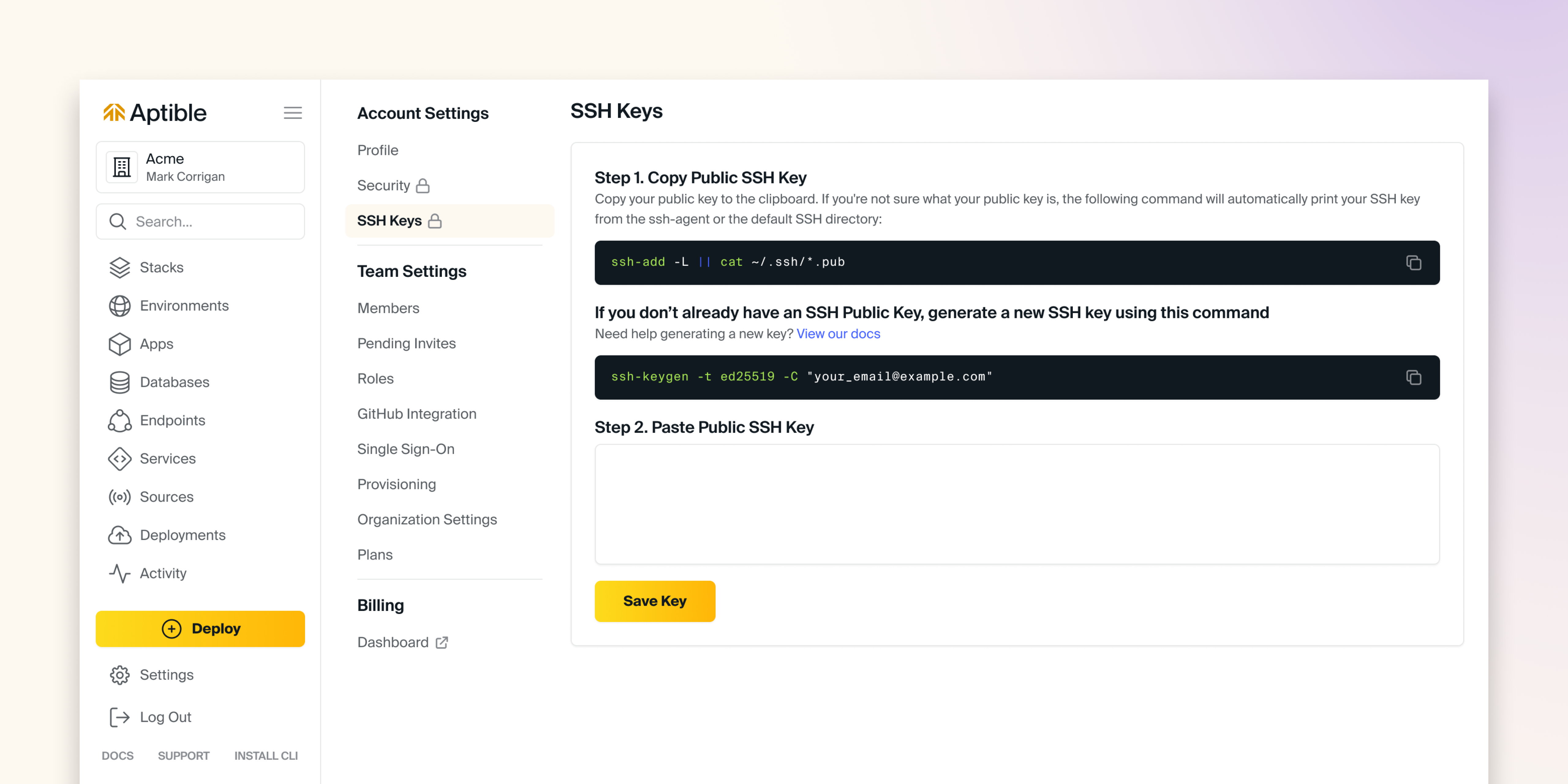 If you [don't already have an SSH Public Key](https://docs.github.com/en/authentication/connecting-to-github-with-ssh/checking-for-existing-ssh-keys), generate a new SSH key using this command:
```
ssh-keygen -t ed25519 -C "your_email@example.com"
```
If you are using a legacy system that doesn't support the Ed25519 algorithm, use the following:
```
shell ssh-keygen -t rsa -b 4096 -C "you@example.com"
```
Once you have generated your SSH key, follow these steps:
1. In the Aptible dashboard, select the Settings option on the bottom left.
2. Select the SSH Keys option under Account Settings.
3. Reconfirm your credentials by entering your password on the page that appears.
4. Follow the instructions for copying your Public SSH Key in Step 1 listed on the page.
5. Paste your Public SSH Key in the text box located in Step 2 listed on the page.
# Featured Troubleshooting Guides
If you [don't already have an SSH Public Key](https://docs.github.com/en/authentication/connecting-to-github-with-ssh/checking-for-existing-ssh-keys), generate a new SSH key using this command:
```
ssh-keygen -t ed25519 -C "your_email@example.com"
```
If you are using a legacy system that doesn't support the Ed25519 algorithm, use the following:
```
shell ssh-keygen -t rsa -b 4096 -C "you@example.com"
```
Once you have generated your SSH key, follow these steps:
1. In the Aptible dashboard, select the Settings option on the bottom left.
2. Select the SSH Keys option under Account Settings.
3. Reconfirm your credentials by entering your password on the page that appears.
4. Follow the instructions for copying your Public SSH Key in Step 1 listed on the page.
5. Paste your Public SSH Key in the text box located in Step 2 listed on the page.
# Featured Troubleshooting Guides